












Latest opinions
-
 Apple's Siri AI troubles prove Samsung's messy multi-AI strategy was right
 -
 Apple just showed Samsung what foldable buyers care about
 -
 7 years of foldables and my Galaxy Z Fold 8 still can't count screen usage properly
 -
 The Galaxy Z Fold 8 may hold the answer to the only viable compact phone formula
 -
 Apple named its foldable the iPhone Duo, there's a lesson in there for Samsung
 -
 Apple surprised Samsung on its own home turf
 -
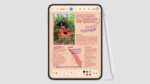 iPhone Duo's Apple Pencil support makes Z Fold 8’s missing S Pen harder to excuse
 -
 The iPhone Duo didn’t make me jealous as a Samsung fan, the iOS 27 release date did
 -
 Samsung used variable aperture to improve night shots, but Apple is taking a different approach



