Published: November 24th, 2023 at 16:02 UTC+01:00
SamMobile has affiliate and sponsored partnerships, we may earn a commission.
Reading time: 2 minutes
In the latest versions of One UI, these haptic feedback parameters can be personalized by users to their liking in great detail. Here's all you need to know to change the vibration intensity for your Galaxy phone.
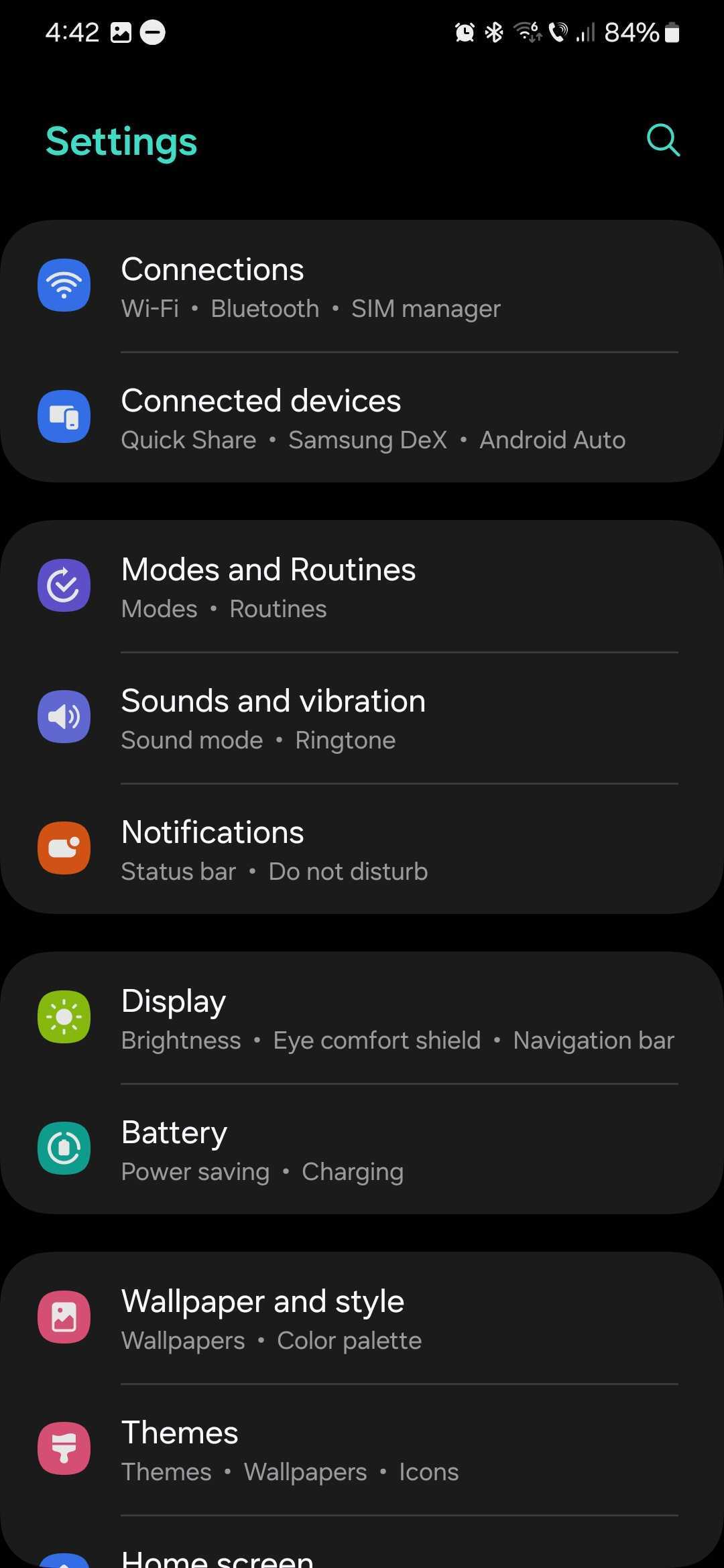
To customize your phone's vibration settings, first open the Settings app and then go to the “Sound and vibration” menu.
Here, you will find two sub-menus, both of which contain detailed haptic feedback settings. These sub-menus are called “System vibration” and “Vibration intensity.”
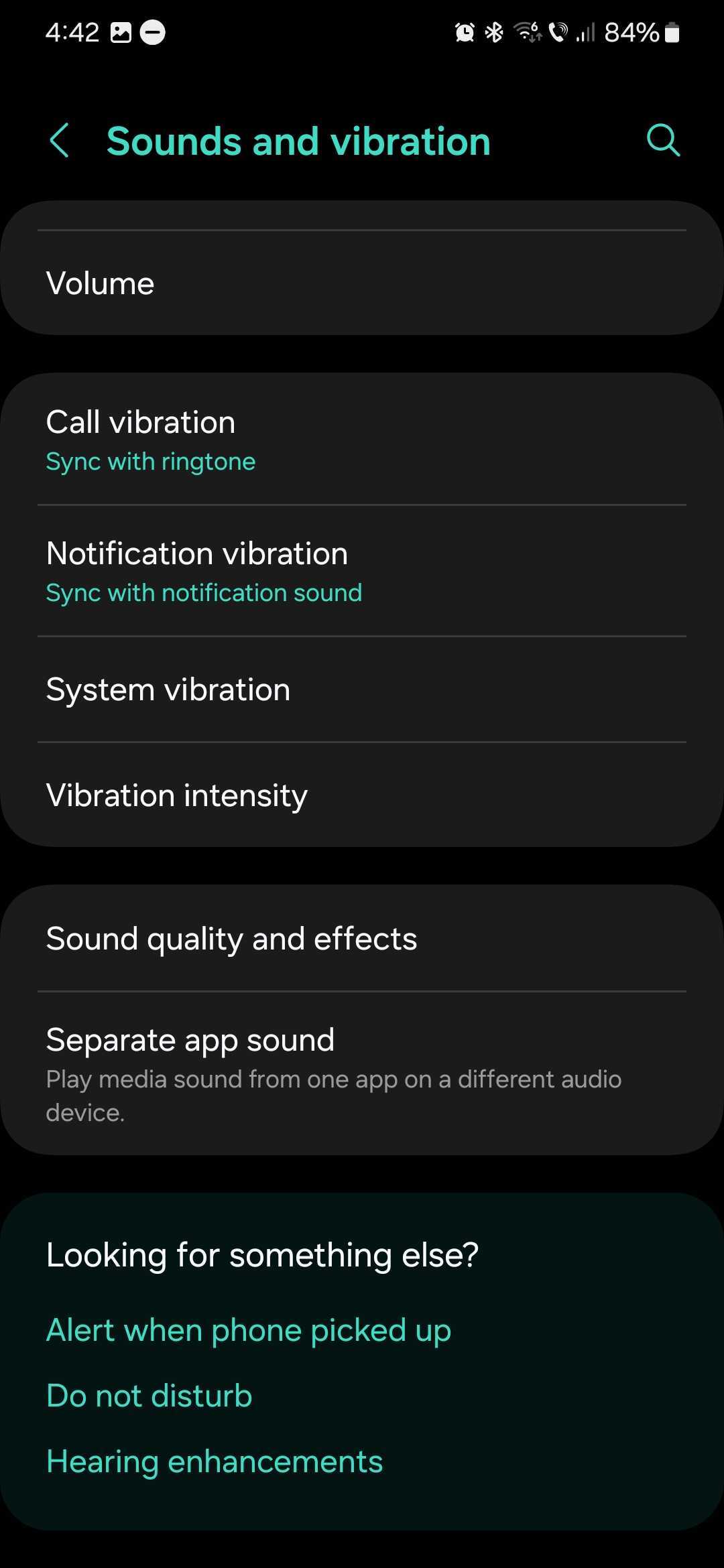
The “System vibration” screen lets you control the system vibration intensity and turn ON or OFF vibration for various actions individually, including:
The other sub-menu, called “Vibration intensity,” allows users to change the intensity of haptic feedback for four parameters: Call, Notifications, System, and Media.
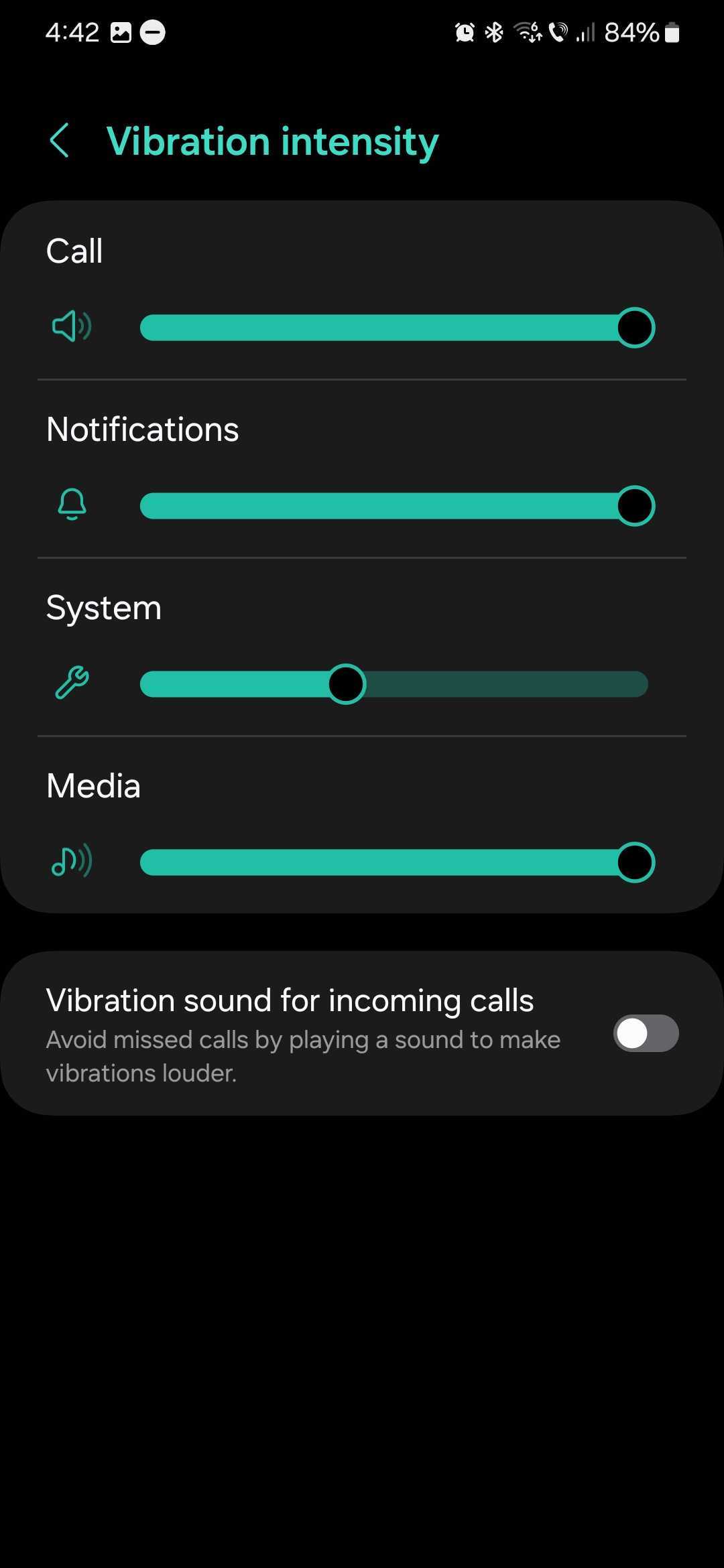
There's also a fifth setting in this menu that lets you enable a feature called “Vibration sound for incoming calls.” When you turn this feature ON, your phone will emulate a louder vibration sound through its speakers.
This enhanced vibration sound will not play when your phone outputs audio to a different device, like external speakers or headphones.

First Samsung device: SGH-A800
Mihai is a blogger and column writer at SamMobile. His first Samsung phone was an A800 which took a lot of beating, and a part of him still misses the novelty of the clamshell design. In his free time, he enjoys watching shows, documentaries, and stand-up comedy; listening to music, taking walks, and occasionally playing old(er) video games.














