Last updated: August 2nd, 2017 at 10:58 UTC+02:00
SamMobile has affiliate and sponsored partnerships, we may earn a commission.
Reading time: 2 minutes
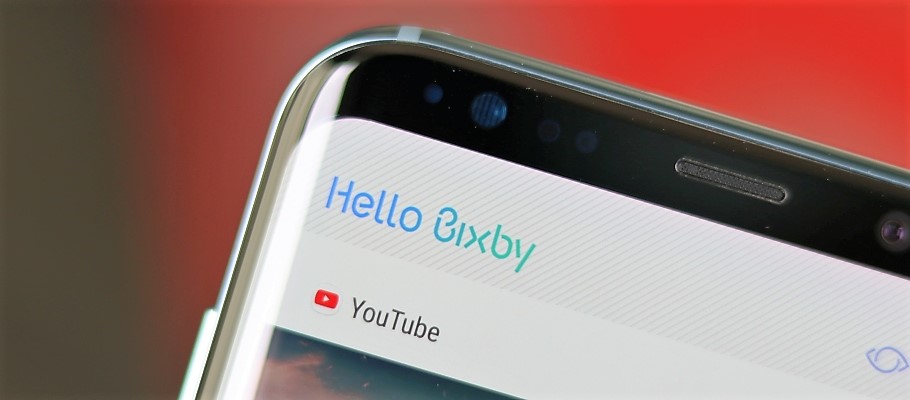
How? Well, it's simple and can be done from the Bixby settings. Here's what you need to do:
Step 1: Open Bixby by pressing the Bixby key. Then, tap on the three-dot button at the top right of the screen and hit the Settings option.
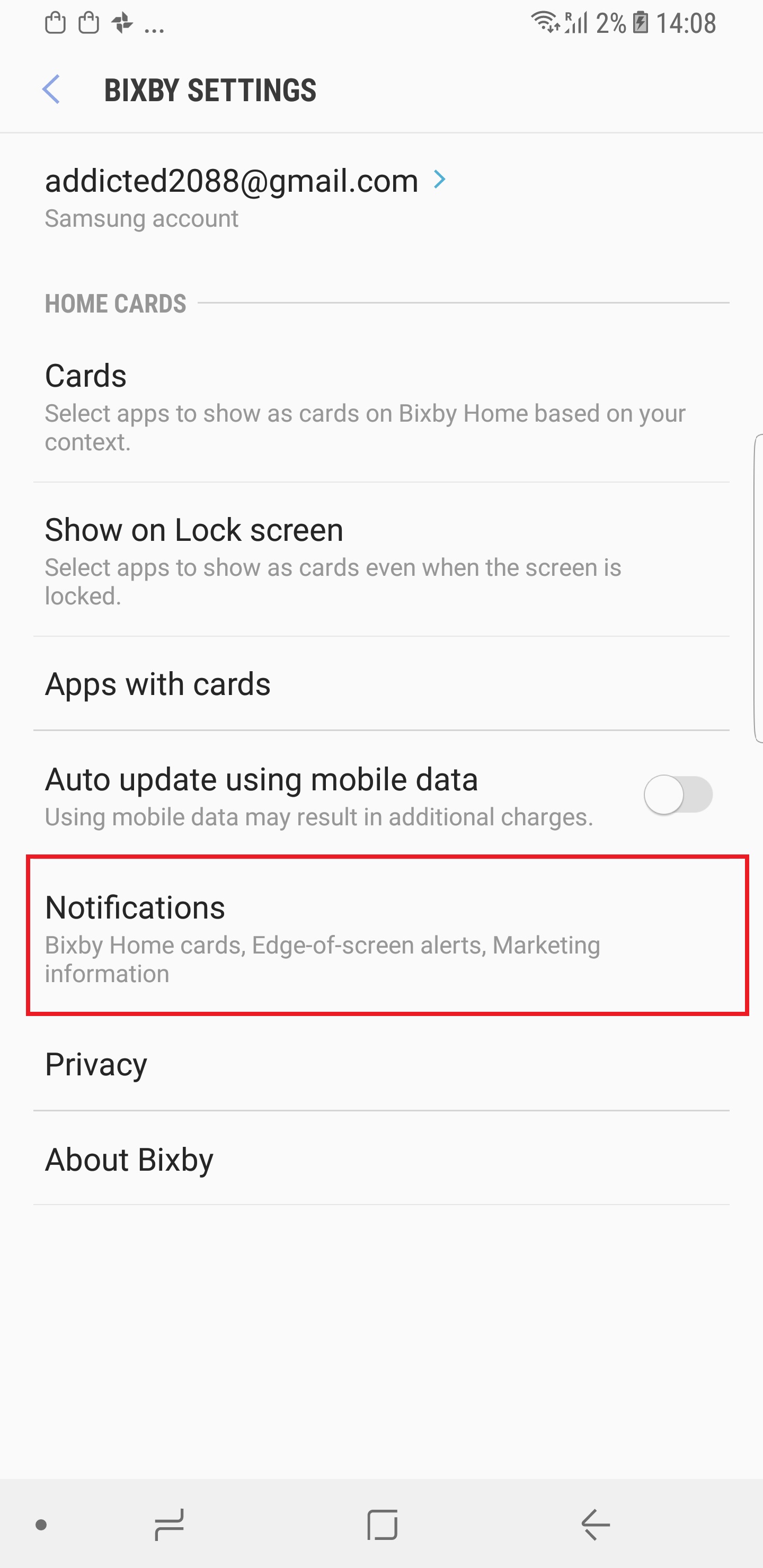
Step 2: Inside settings, tap on Notifications.
Step 3: Here, simply disable Bixby Home cards by using the toggle.
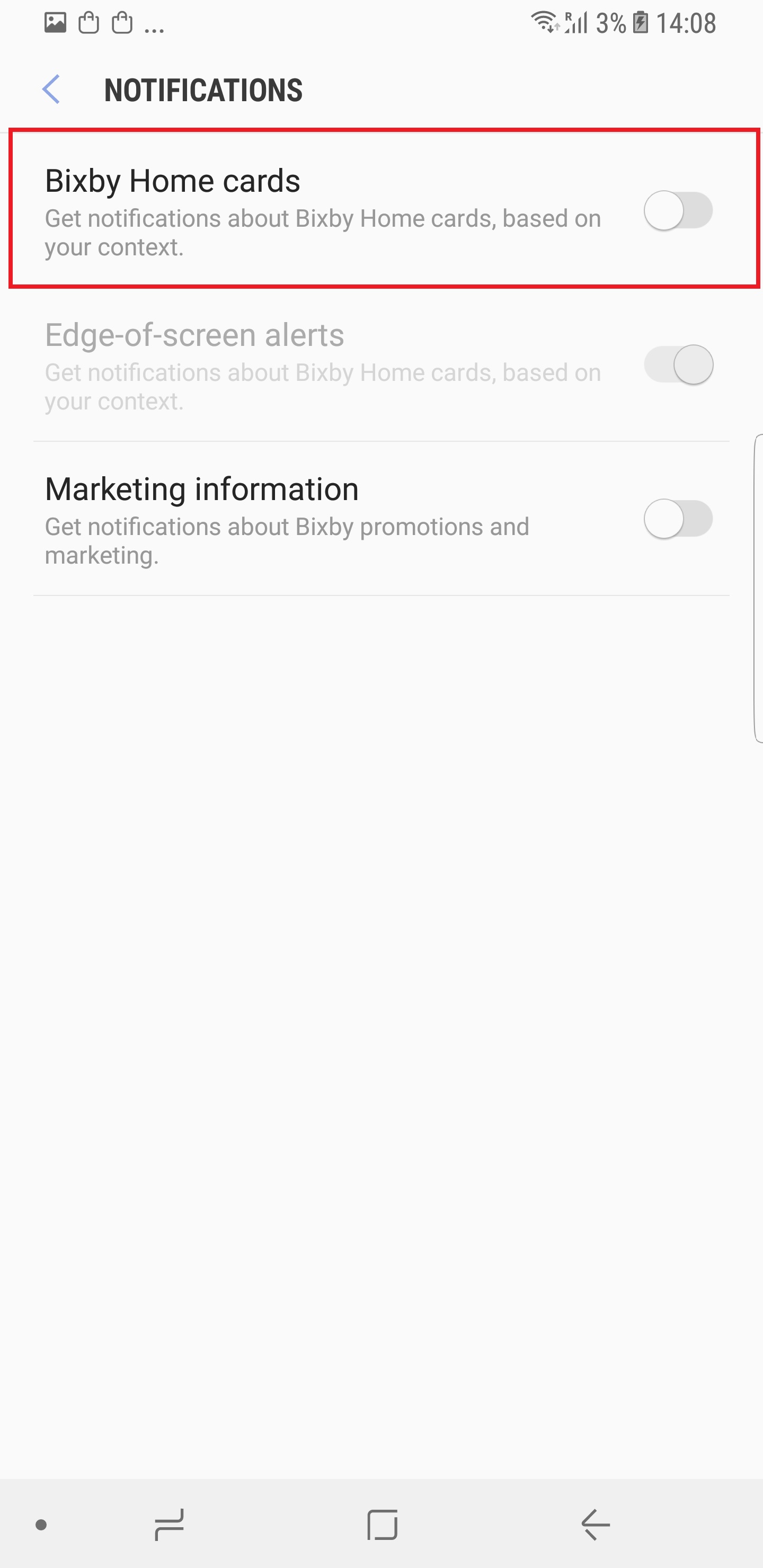
That's all there is to it. Bixby will continue to work in the background and it will also continue to show up when you hit its dedicated key (whether intentionally or by mistake), but you should no longer be pestered by notifications. You can always enable them again by following the steps above and enabling the Bixby Home cards option.
Check out our collection of tips and tricks for the Galaxy S8 and Galaxy S8+ to get the most out of your phone. If you have any issues, leave a comment, and we'll do our best to help you out.

Abhijeet's writing career started with guides for custom firmware for Samsung devices (including the original Galaxy S), and he moved to SamMobile in mid-2013 and worked up the ranks to Editor-in-chief. In addition to phones and mobile devices, his interests include gaming on both PC and console, PC hardware, and spending countless hours on YouTube watching videos on tech, movies, games, politics, and internet dramas.













