Last updated: May 26th, 2017 at 17:28 UTC+02:00
SamMobile has affiliate and sponsored partnerships, we may earn a commission.
Reading time: 3 minutes
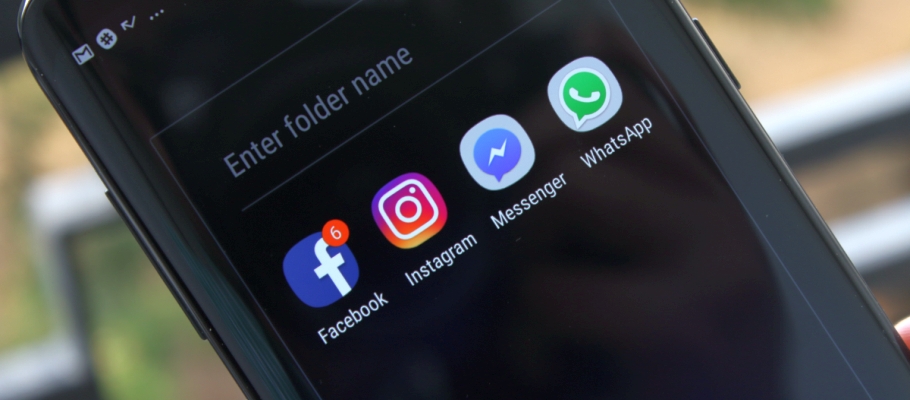
Well, the process has changed, but you can still make folders inside the app drawer. Follow the steps below to find out how.
Step 1: Open the app drawer (by swiping up or down on the home screen, or using the dedicated app drawer button if you have that enabled).
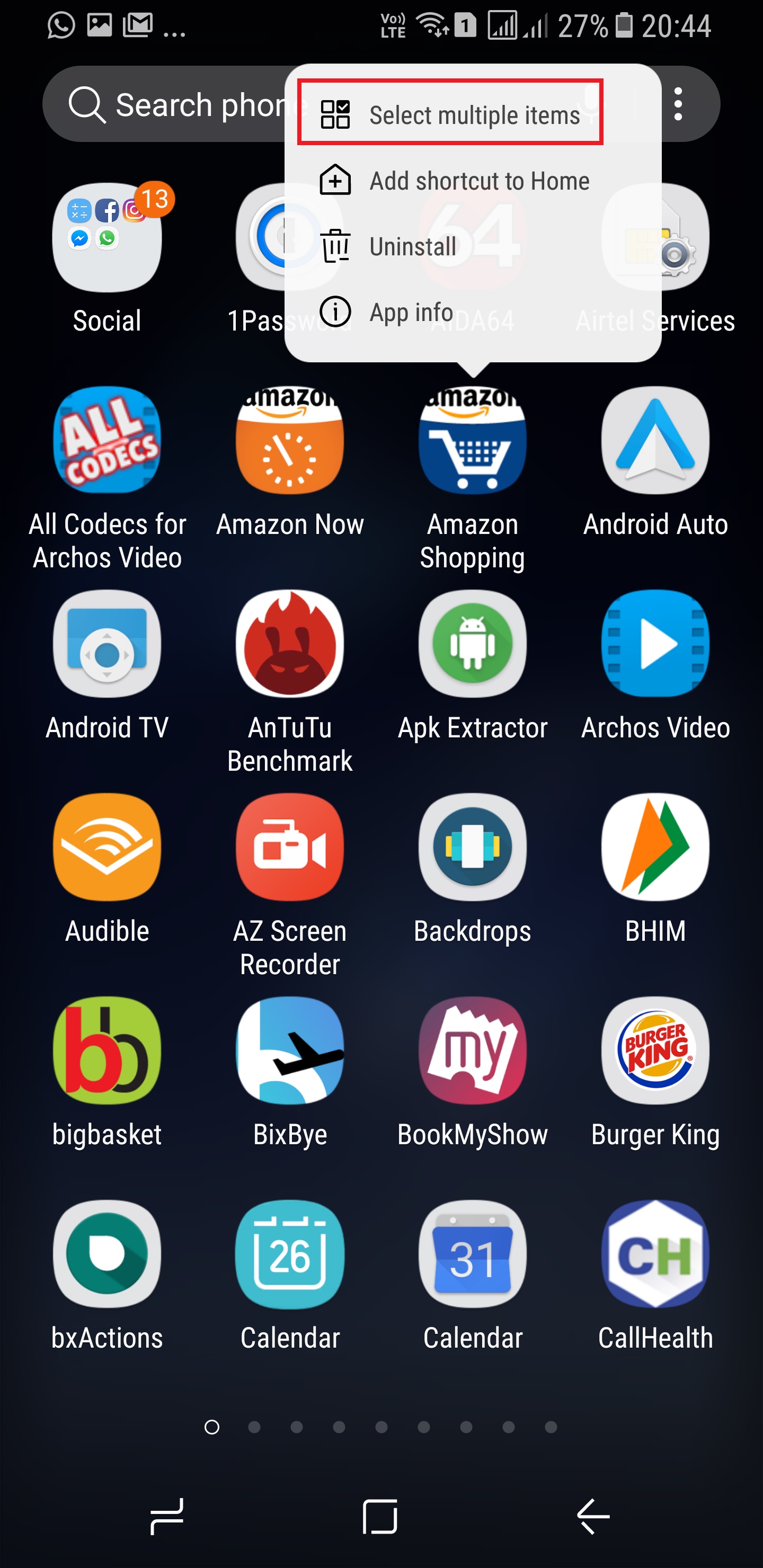
Step 2: Press and hold on one of the apps that you want to put inside a folder. Stop pressing the icon once you see a few options pop up next to it.
Step 3: Tap the Select multiple items option.
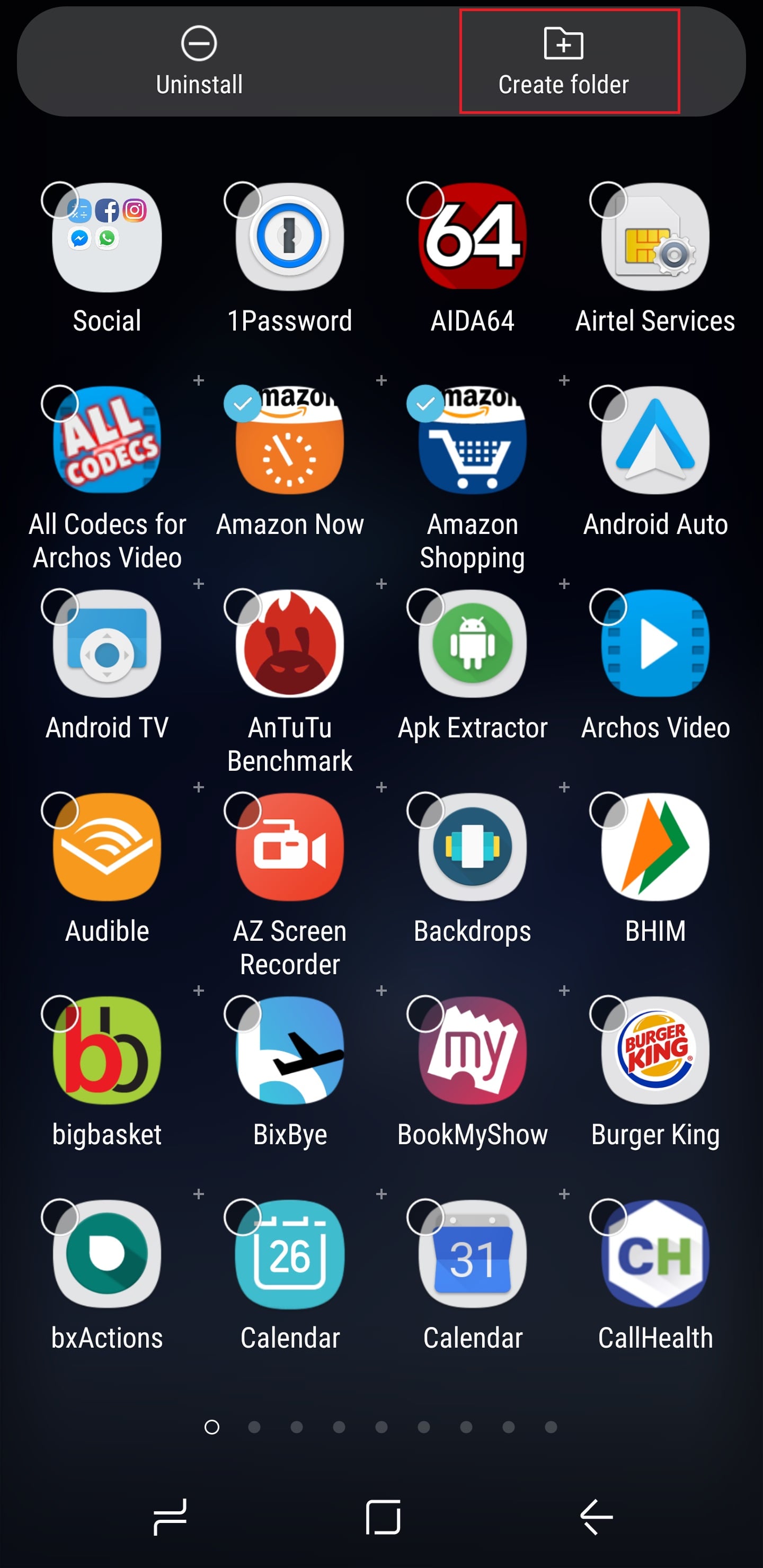
Step 4: Then, select all the apps that you wish to put inside a folder.
Step 5: Once you've selected the apps, hit the Create Folder button on the top right of the display.
That's it. The phone will show you the folder you just created, and you can put any name to it by typing into the name field. You can also change the color of the folder to distinguish it from other folders/app shortcuts. Each folder that you create shows up at the start of the apps list, so you can quickly get to these folders without having to swipe around in the app drawer.
To add more icons to a particular folder later on, here's what you need to do.
Step 1: Follow steps 1 to 3 listed above.
Step 2: Select the apps you wish to add to the existing folder.
Step 3: Hold and drag these apps (pressing any of the app shortcuts will make all selected shortcuts move around) and drop them into the folder you want to add them to.
Naturally, you can also delete existing folders. To do so, press and hold a folder until you get a few options pop up, and select Delete folder. This will remove the folder from your app drawer and put all the apps that were inside back in their original positions.
Facing an issue? Reach out to us in the comments and we'll do our best to get you on the right track. Also, don't forget to take a look at other Galaxy S8 and Galaxy S8+ tips to make the most out of your new phone.

Abhijeet's writing career started with guides for custom firmware for Samsung devices (including the original Galaxy S), and he moved to SamMobile in mid-2013 and worked up the ranks to Editor-in-chief. In addition to phones and mobile devices, his interests include gaming on both PC and console, PC hardware, and spending countless hours on YouTube watching videos on tech, movies, games, politics, and internet dramas.













