Last updated: May 24th, 2017 at 14:57 UTC+02:00
SamMobile has affiliate and sponsored partnerships, we may earn a commission.
Reading time: 2 minutes
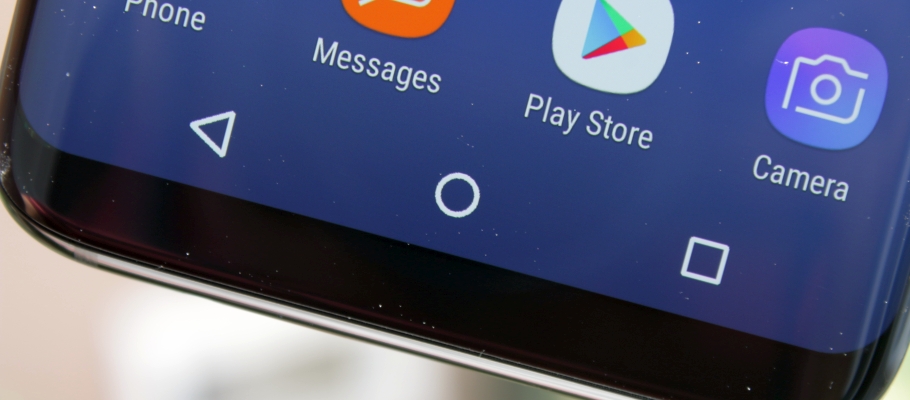
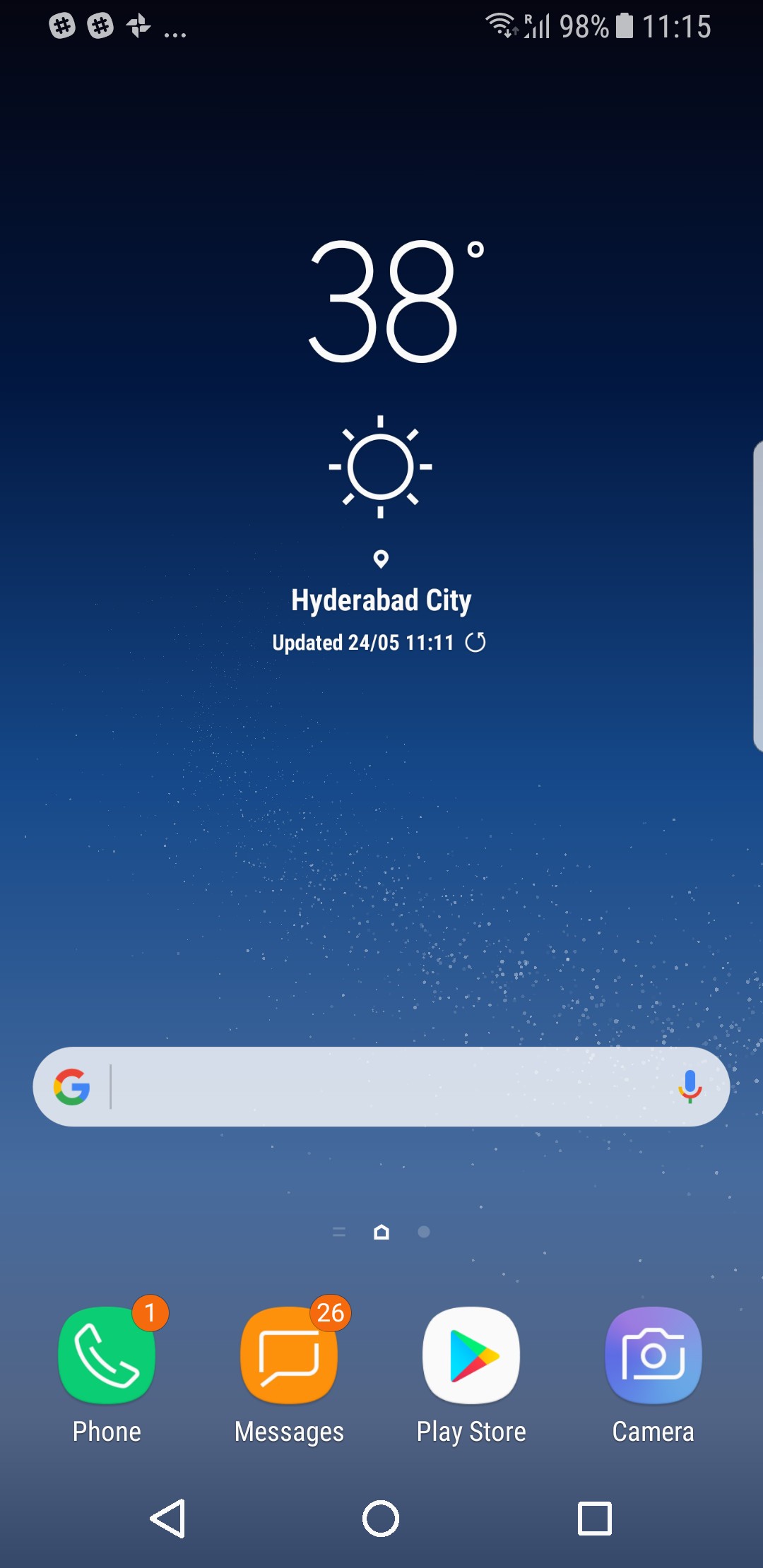
To get the stock Android navigation keys, download this app's APK and install it on your phone (you will be prompted to enable installation of apps from unknown sources, just use the “for once” option to allow installation). Restart the phone and you should see the new navigation keys. We have noticed that performance on the phone can be a bit jittery after the reboot, but it should go back to normal in a minute or two. Hopefully, Samsung will one day allow themes to change the look of the navigation keys, but until then, this should be a good alternative.
If you're looking for a different set of icons, the thread on XDA has various options uploaded by users, so you can download the ones you want. You can also change the order of keys after installing the custom icons (from the Settings » Display » Navigation bar menu) to match stock Android. To go back to the original icons, simply find the app in Settings » Apps and uninstall it (the name of the app should be “Com.android.systemui.product.res.Overlay“).

Abhijeet's writing career started with guides for custom firmware for Samsung devices (including the original Galaxy S), and he moved to SamMobile in mid-2013 and worked up the ranks to Editor-in-chief. In addition to phones and mobile devices, his interests include gaming on both PC and console, PC hardware, and spending countless hours on YouTube watching videos on tech, movies, games, politics, and internet dramas.













