Last updated: April 28th, 2017 at 09:17 UTC+02:00
SamMobile has affiliate and sponsored partnerships, we may earn a commission.
Reading time: 2 minutes
Here's how you do it:
Before we go any further, connect your iPhone to your computer and create a backup using iTunes. Instructions on how to do so can be found here. Once you've done that, open up Smart Switch and install any software updates that are available.
Step 1: Ensure Smart Switch is running on your computer, then connect your Galaxy S8 using a USB-C cable.
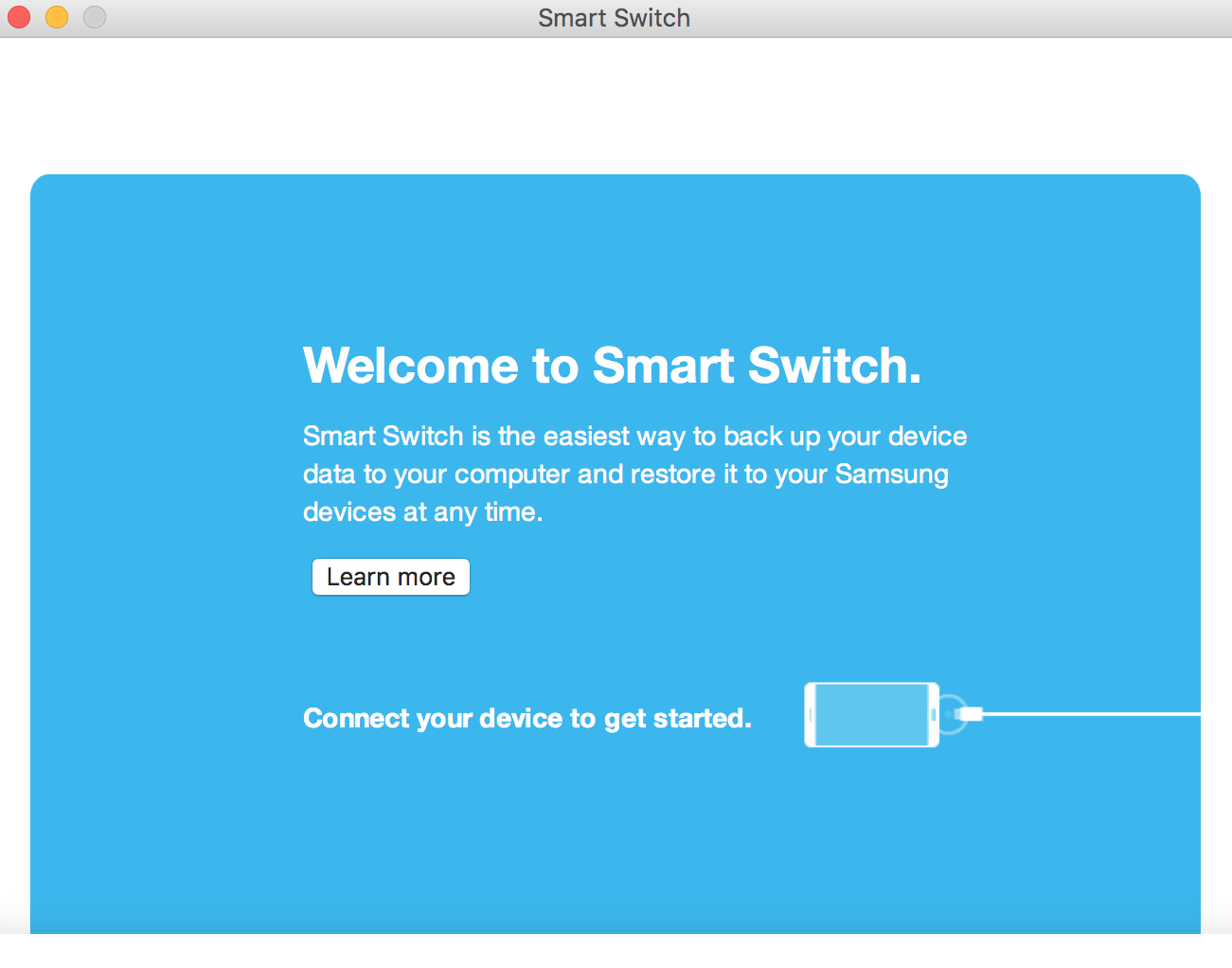
Step 2: After Smart Switch recognises your handset (it may take a few minutes), hit the Restore button.
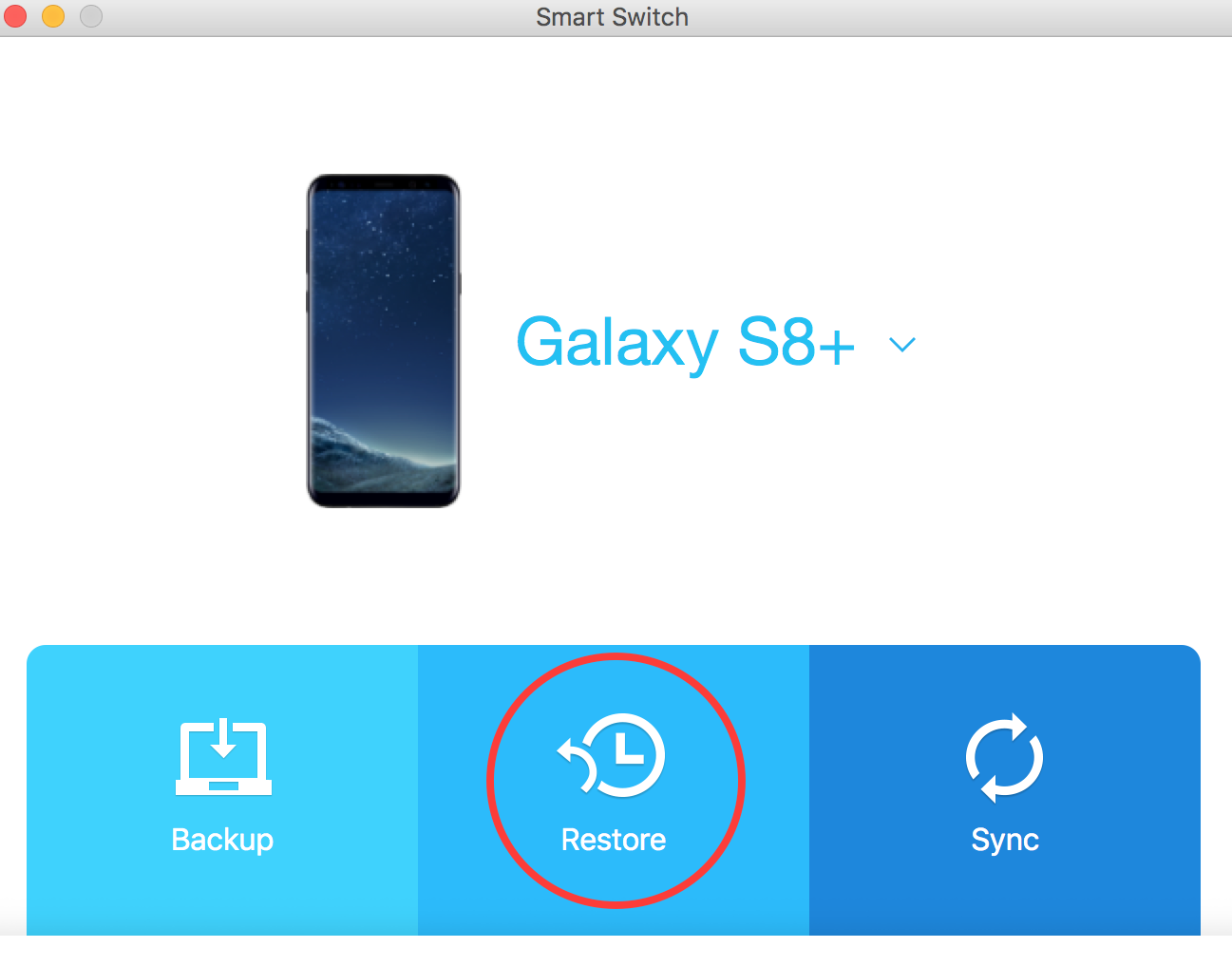
Step 3: Press Select a different backup.
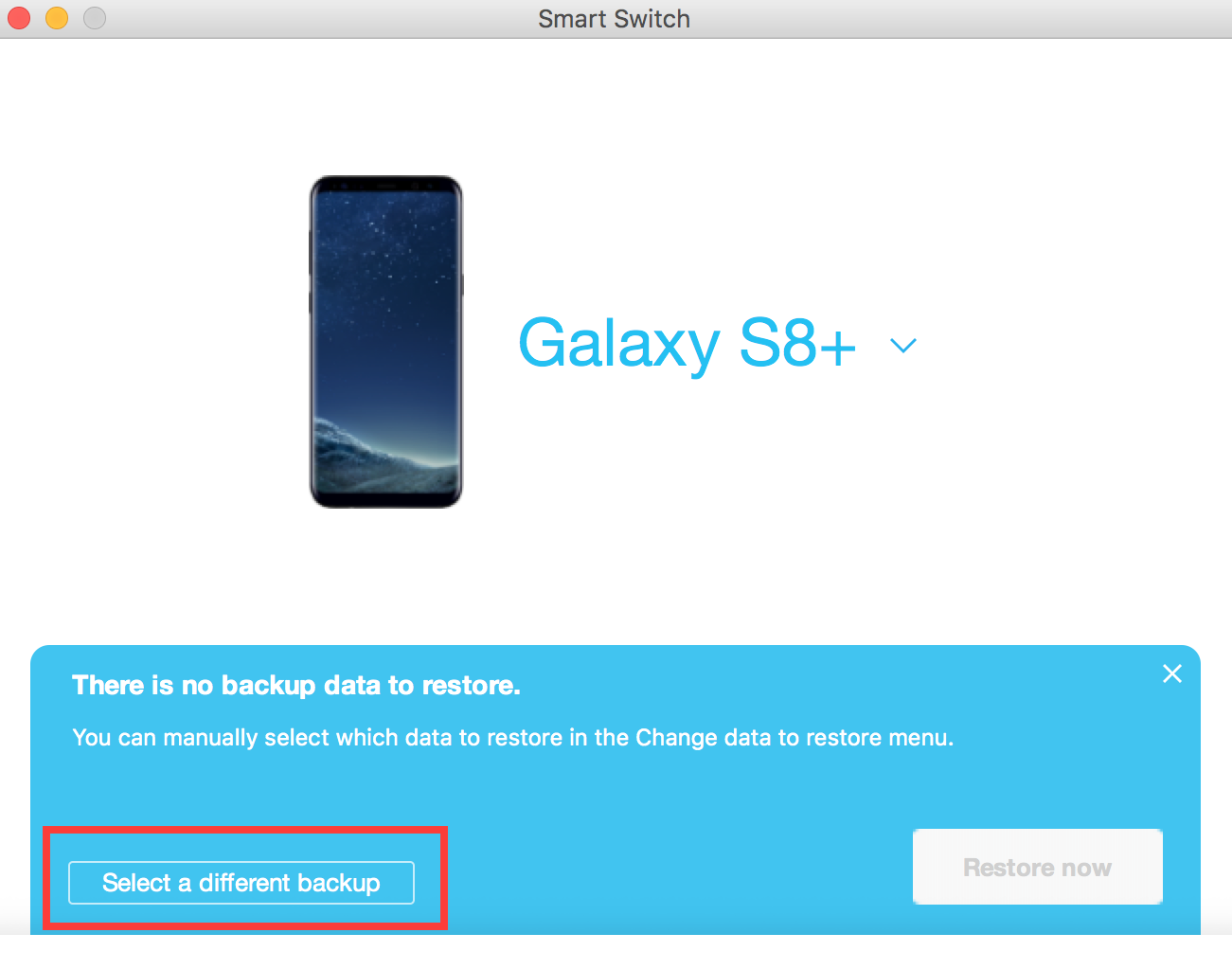
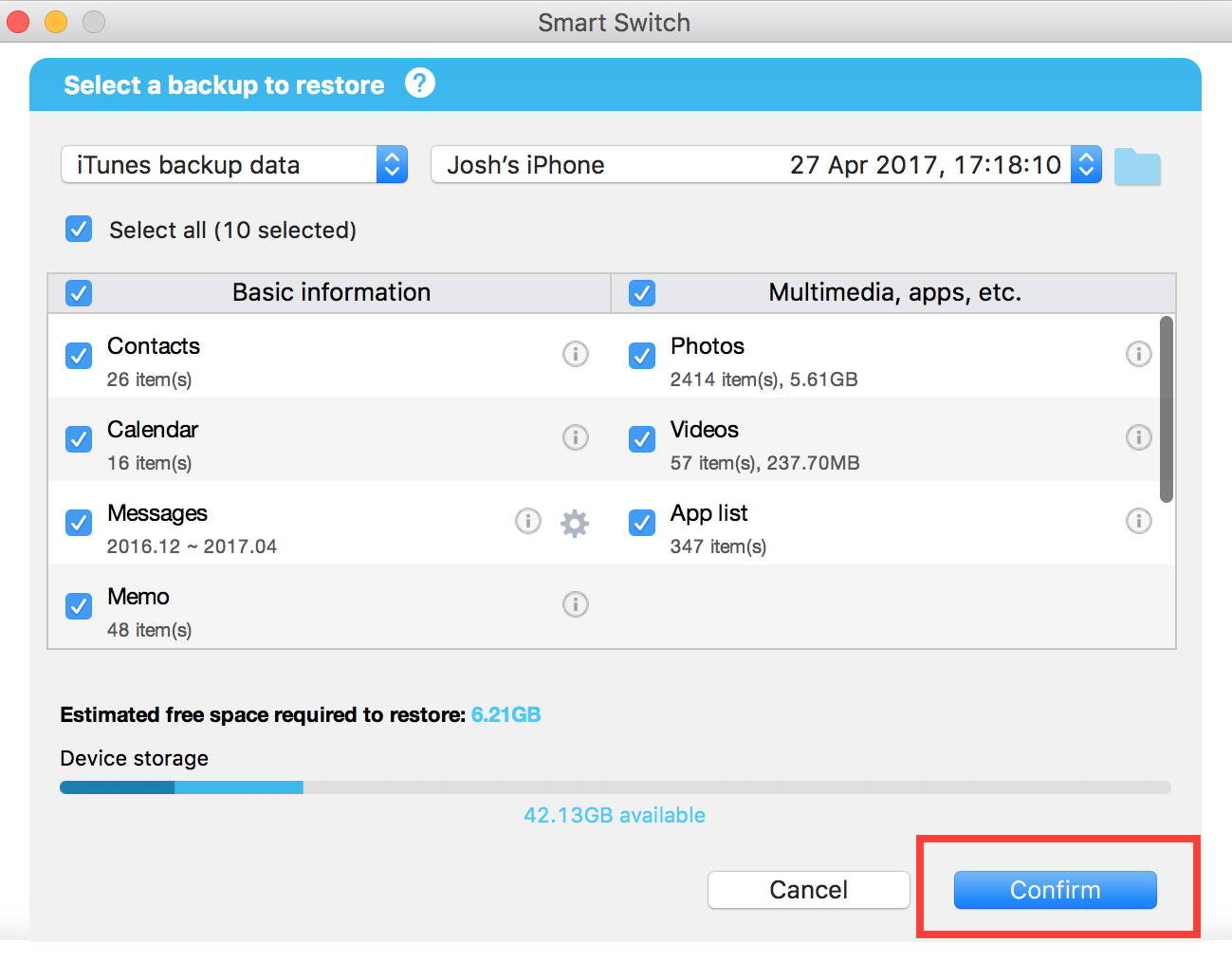
Step 4: Change the source of the backup you want to restore from Samsung Device Data to iTunes Backup Data using the dropdown menu.

Step 5: Choose the data you want to restore and press Confirm.
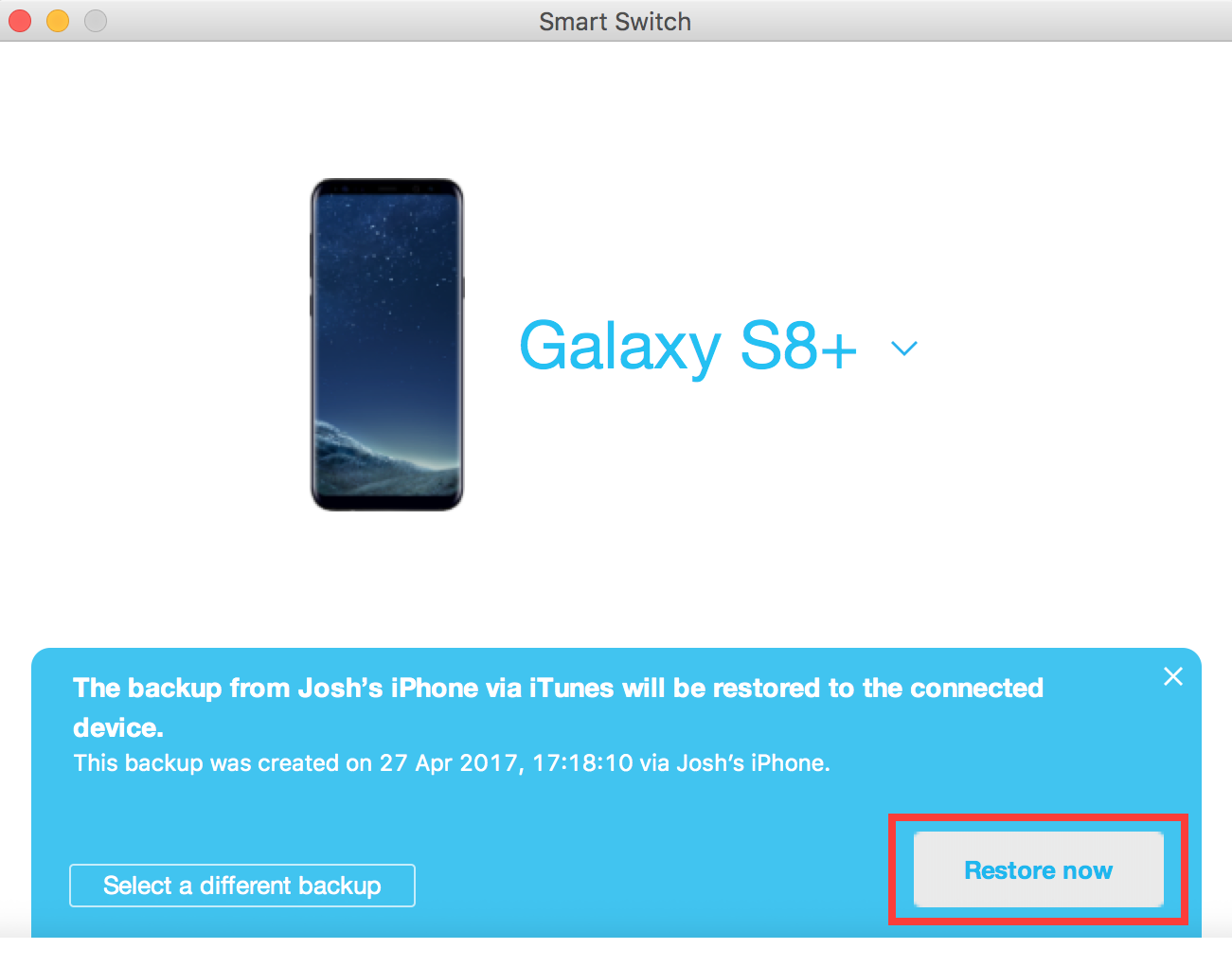
Step 6: Press Restore Now.
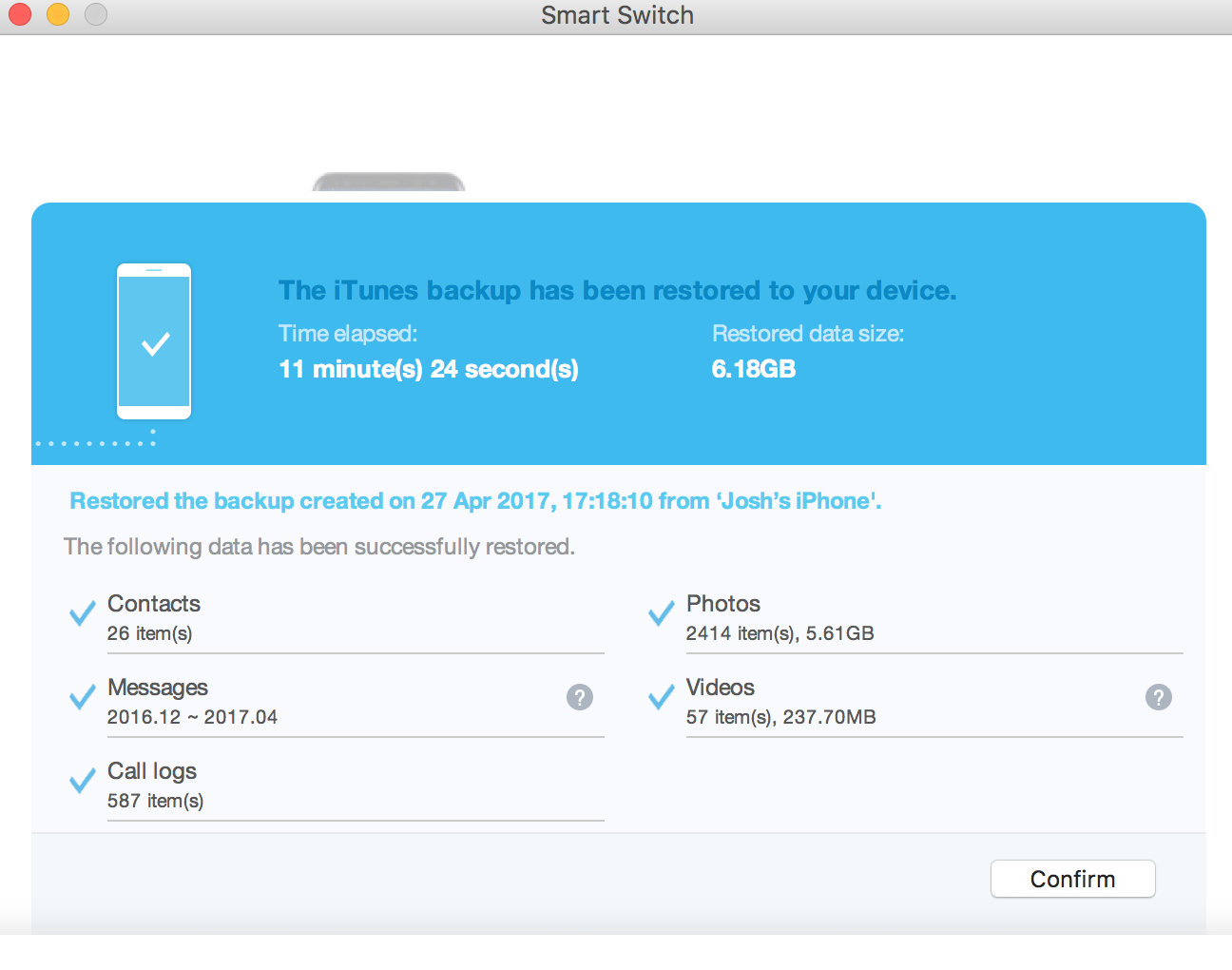
Step 7: Wait for the restoration process to complete, hit Confirm, then disconnect your Galaxy S8.
You're all done. If something doesn't go quite according to plan, be sure let us know in the comments section below and we’ll do our very best to get you back on track. Otherwise, feel free to check out our other Galaxy S8 tips and tricks, and be on the lookout for more in the coming days.














