Last updated: April 25th, 2017 at 17:17 UTC+02:00
SamMobile has affiliate and sponsored partnerships, we may earn a commission.
Reading time: 3 minutes
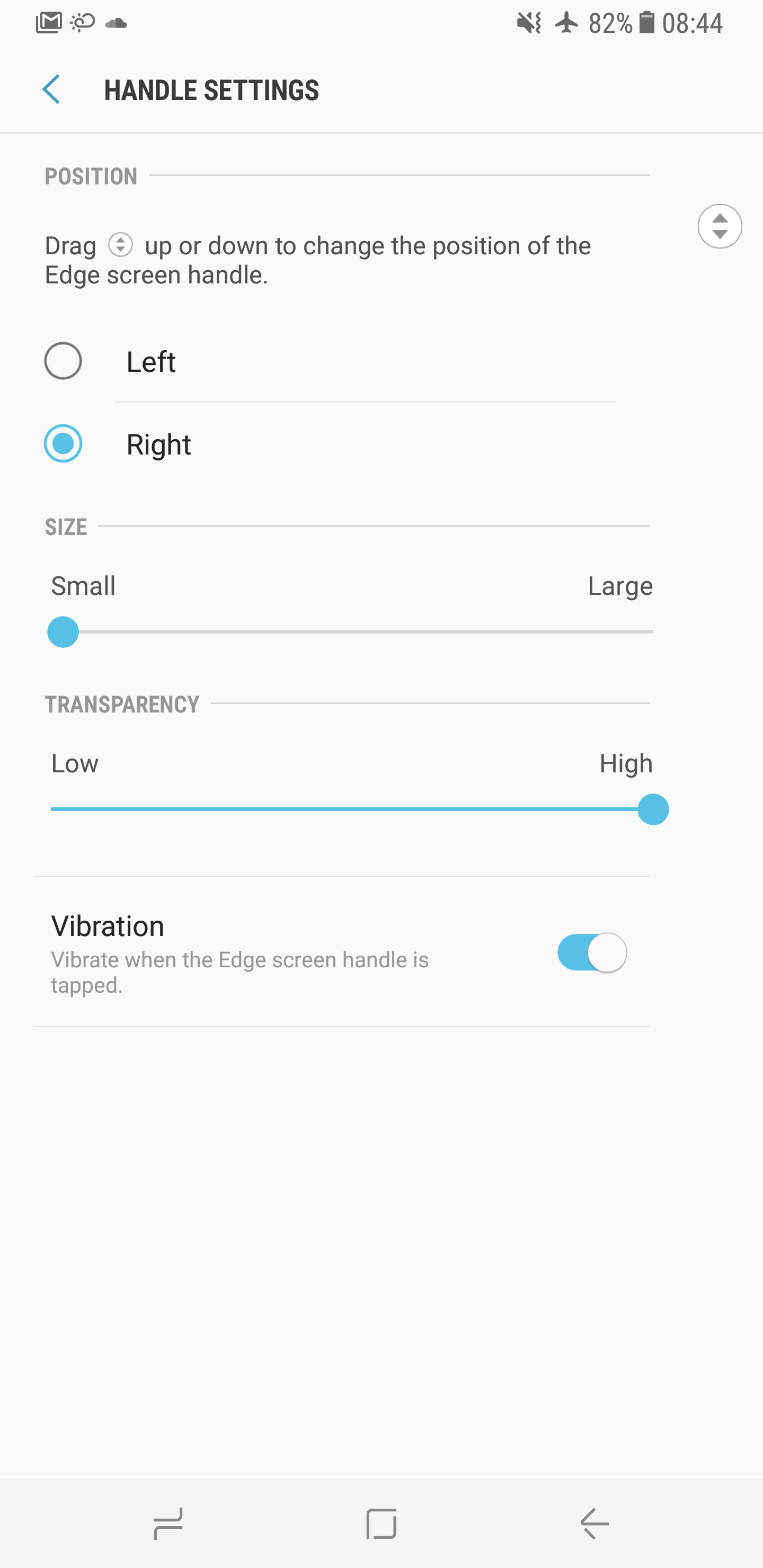
Adjust the transparency of the Edge panel handle
The Edge panel handle that follows you in and out of every application on the Galaxy S8 is a bit of an eye sore, but by opening up Settings, hitting Display, selecting Edge Screen, tapping Edge Panels, then pressing the three dots at the top and selecting Handle Settings, you can disguise it.
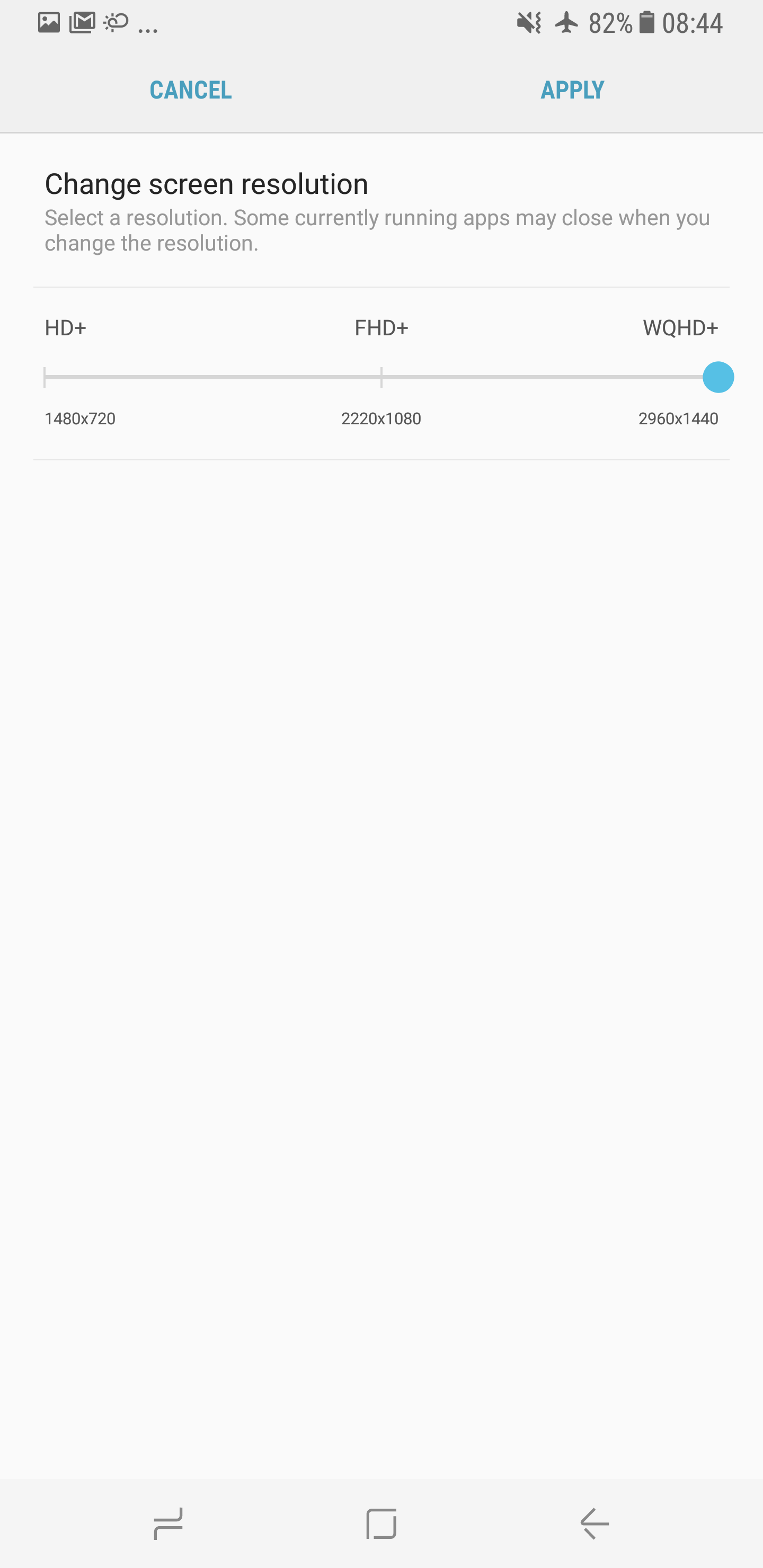
By default, the Galaxy S8's screen resolution is FHD+ (2220 x 1080). However, by navigating into Settings, followed by Display, then tapping Screen Resolution, it can be changed to WQHD+ (2960 x 1440). Although, we should note that toying with the resolution takes a significant toll on battery life.
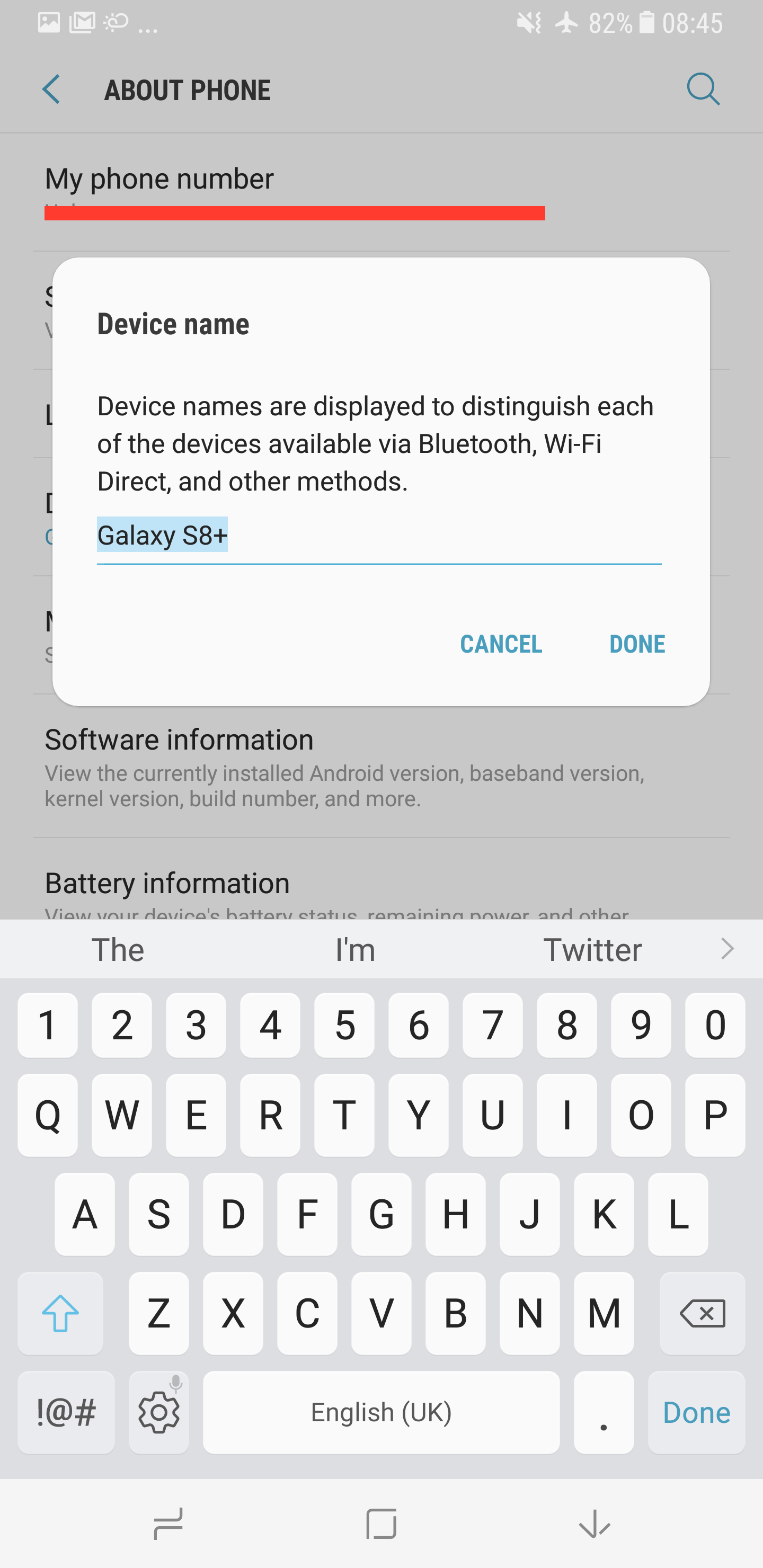
Give your handset a name
Most people fail to give their device a suitable name, which means that when it comes to pairing Bluetooth accessories in a crowded place where it's likely that someone else will own the same phone, pinpointing your handset is near on impossible.
The good news is: it really couldn't be easier to give your handset a codename. It's as simple as pulling up the Settings screen, scrolling down to About Phone, pressing Device Name, assigning it a moniker of your choice, then clicking Save.
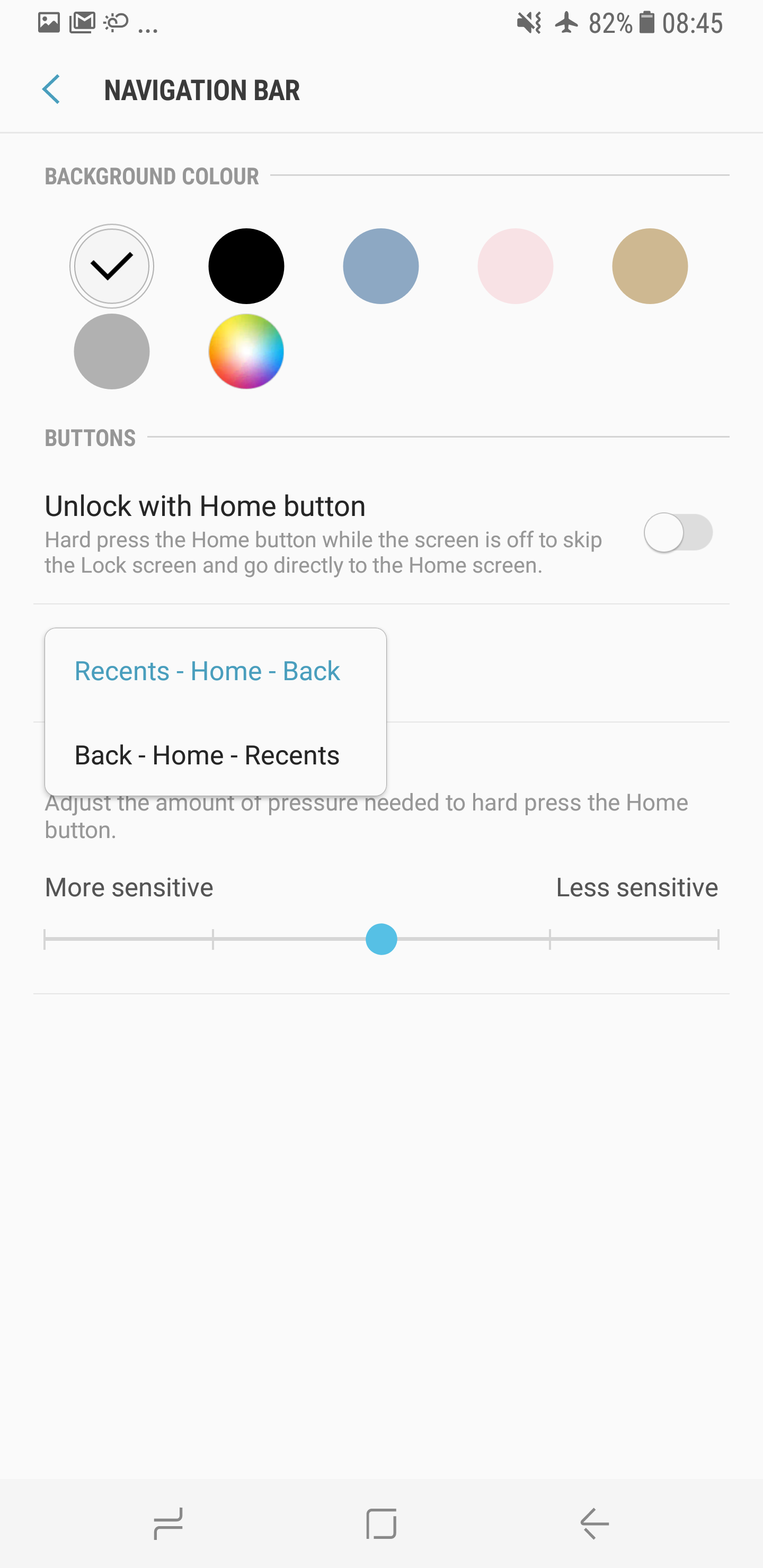
We previously revealed that the Galaxy S8 is Samsung's first flagship smartphone to ship with on-screen buttons and, instead of opting for the stock Android arrangement (Back, Home and Recents), the company kept its traditional order — Recents, Home and Back.
Fortunately, as they aren't hard-coded physical buttons, you can actually switch the order of them to suit your personal preference by toggling Settings, hitting Display, selecting Navigation Bar, pressing Button Layout and choosing Back – Home – Recents.
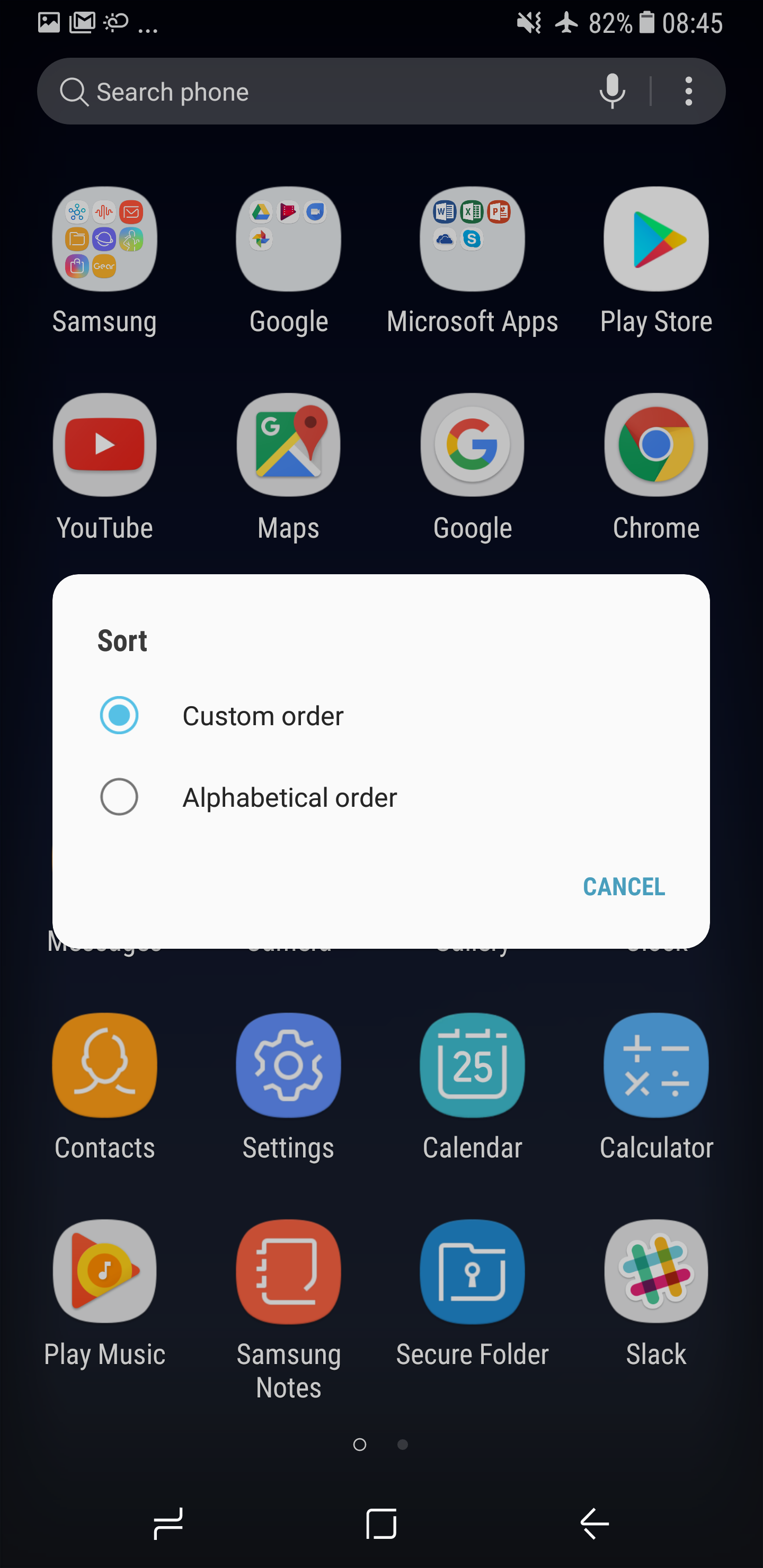
Like most smartphones, the Galaxy S8 displays applications in the drawer in the order they're installed — and we struggle to see why. A more efficient way of organising applications (especially if you have a lot of them) is in alphabetical order.
Here's how:
If you happen to encounter any issues while following our instructions, feel free to reach out to us in the comments section below (or over on Facebook and Twitter) and we’ll do our best to get you back on track. Otherwise, be sure to check out our other Galaxy S8 tips and tricks.













