Last updated: April 3rd, 2017 at 16:46 UTC+02:00
SamMobile has affiliate and sponsored partnerships, we may earn a commission.
Reading time: 2 minutes
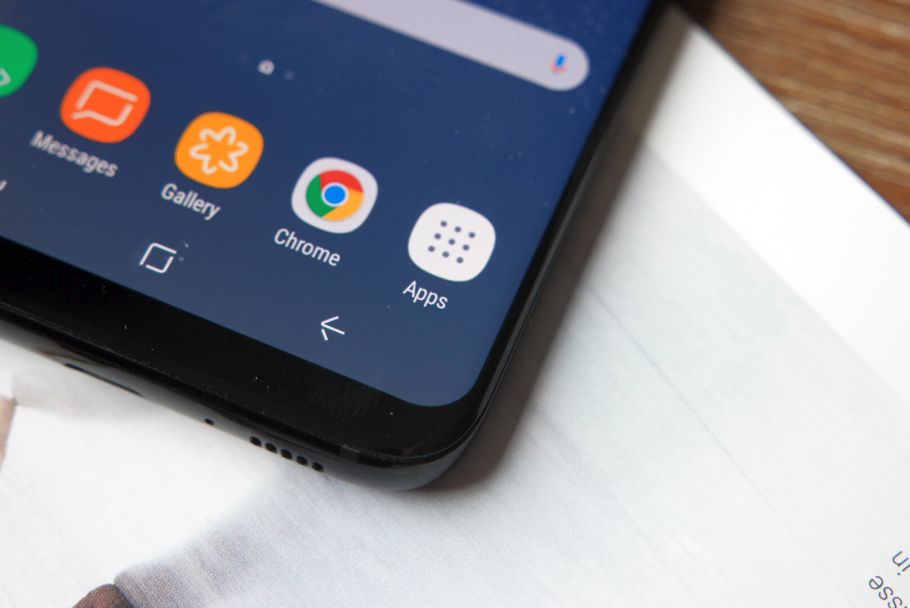
This was first introduced as an experimental feature on the Galaxy S7 and Galaxy S7 edge, and Samsung has now made it a mainstream feature. On the Galaxy S8, the home screen settings let you choose between having both home and app screens or simply a home screen. In the case of the latter, all apps get placed on the home screen itself, and any widgets that you might wish to add will be added to the last home screen pane. Naturally, you can also rearrange widgets by long pressing them and bringing them over to where you want to place them.
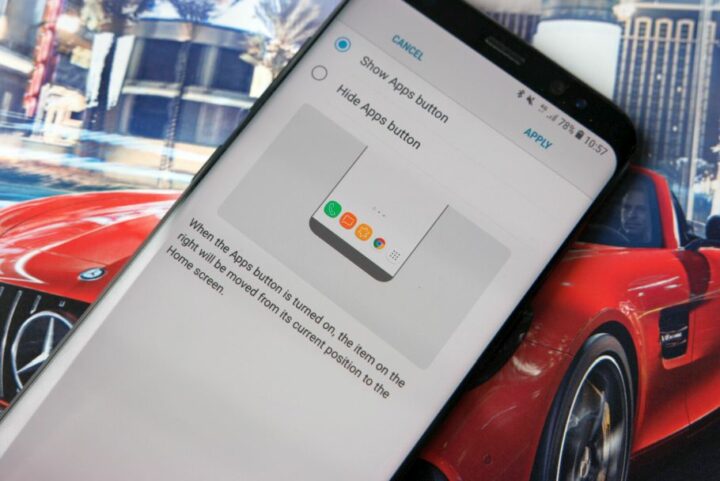
Those who want a separate app drawer also have two options to play with on the Galaxy S8. By default, there is no dedicated Apps button and the app drawer is accessed by swiping up on the home screen; this is how the app drawer works on stock Android 7.0 Nougat. Don't like this way of accessing your apps? You can simply head into the home screen settings and turn on that Apps button. Other options in home screen settings include changing the grid size (for both the home screen icons and the app drawer icons), hiding apps, and customizing Bixby.
As the days go by, we will likely be coming across a lot of new stuff, and we'll be sure to let you know of anything notable that we discover on Samsung's newest flagships.


Abhijeet's writing career started with guides for custom firmware for Samsung devices (including the original Galaxy S), and he moved to SamMobile in mid-2013 and worked up the ranks to Editor-in-chief. In addition to phones and mobile devices, his interests include gaming on both PC and console, PC hardware, and spending countless hours on YouTube watching videos on tech, movies, games, politics, and internet dramas.














