Last updated: March 24th, 2017 at 15:30 UTC+01:00
SamMobile has affiliate and sponsored partnerships, we may earn a commission.
Reading time: 7 minutes
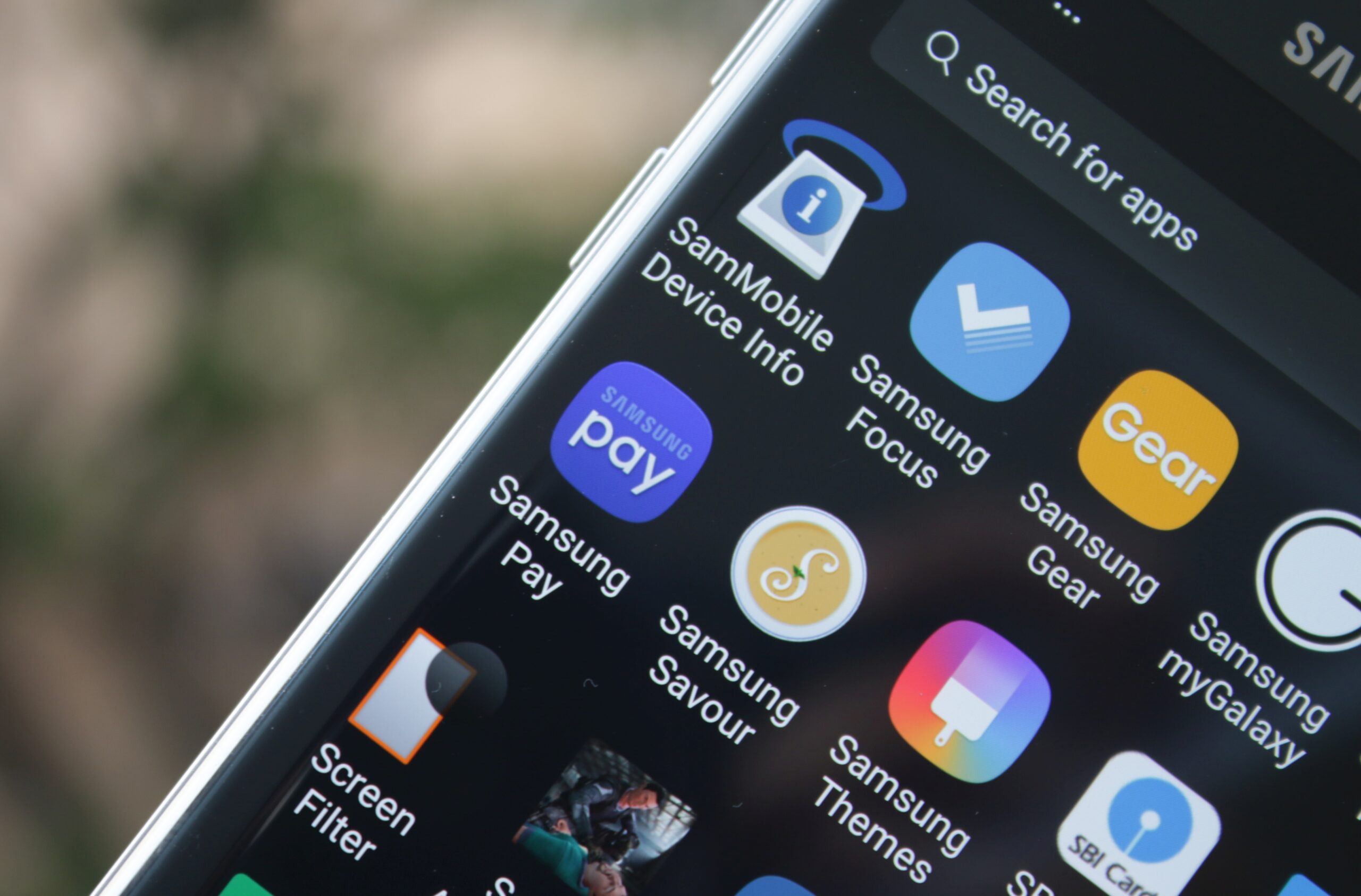
Before you proceed, make sure to check out the list of compatible smartphones and credit/debit cards at Samsung's website.
Every compatible device will have the Samsung Pay app preloaded. If you don't have it on your device, you probably aren't on the latest software version, in which case you should first grab the latest software update from the Settings » About device or Settings » Software update menu. Samsung Pay will also not show up on a third-party launcher, so make sure you switch back to the default launcher from the Settings » Applications menu.
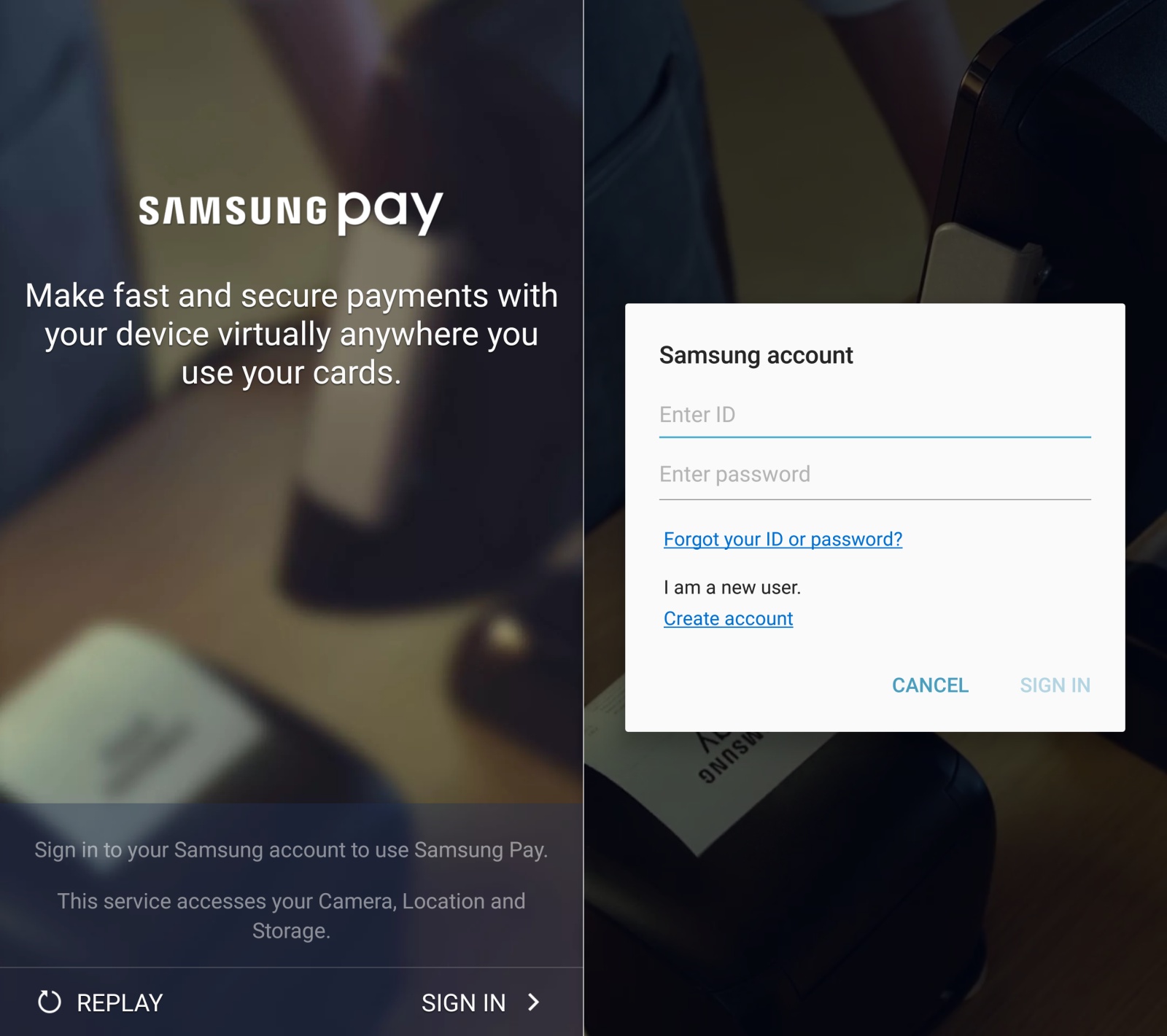
The Samsung Pay app that you see on your phone is not actually the full app, so the first time you open it, you will be prompted to download the full sized Samsung Pay app. Let the download complete and view or skip the intro video that shows up.
Now, the app will ask you to sign to your Samsung account. If you have one, proceed with signing in, or make a new account if you don't have one by selecting the necessary option from the login popup. Also note that the process of adding cards has to be repeated on each new Samsung device, as card information is only saved on the device and not synced to your Samsung account.
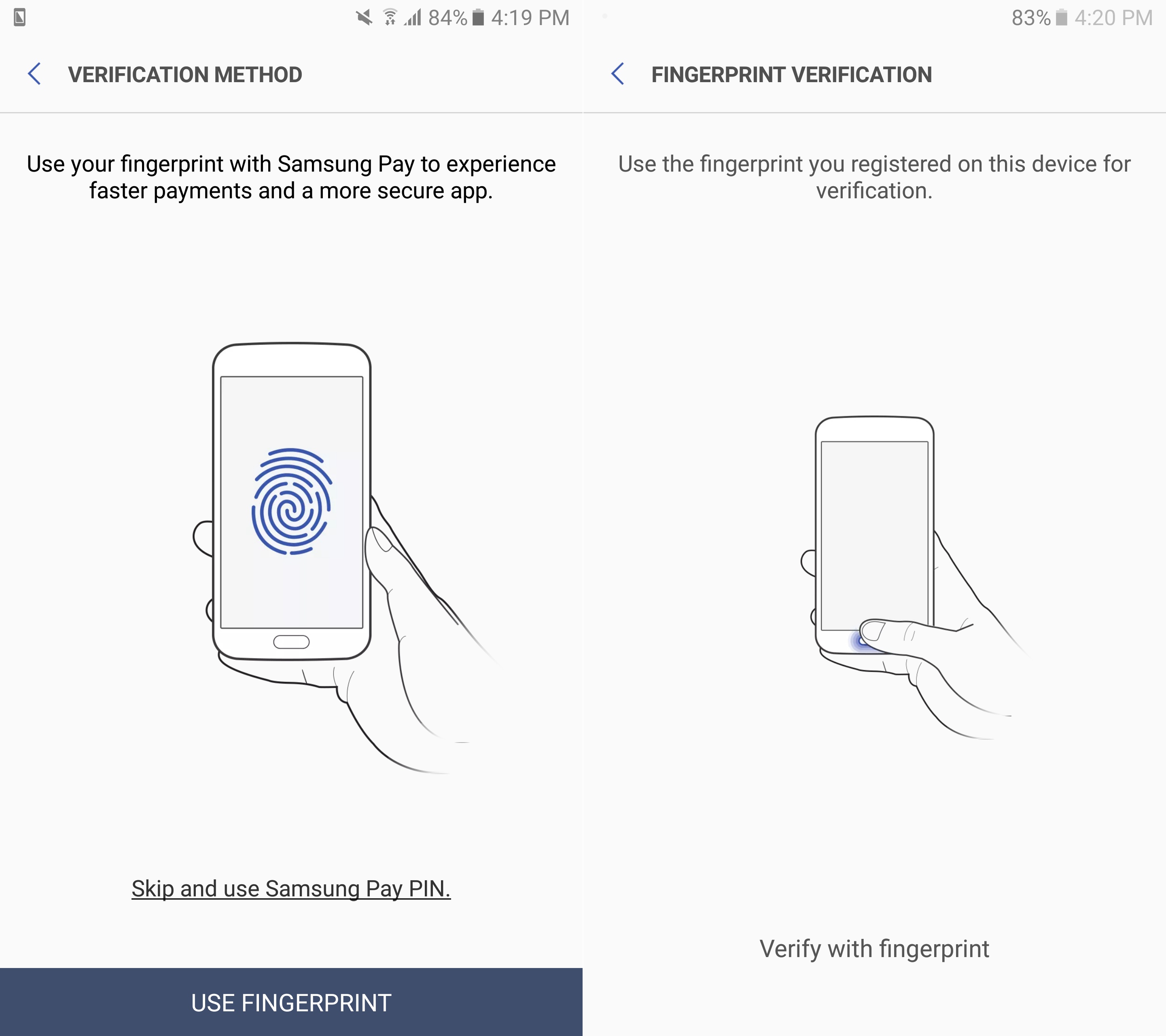
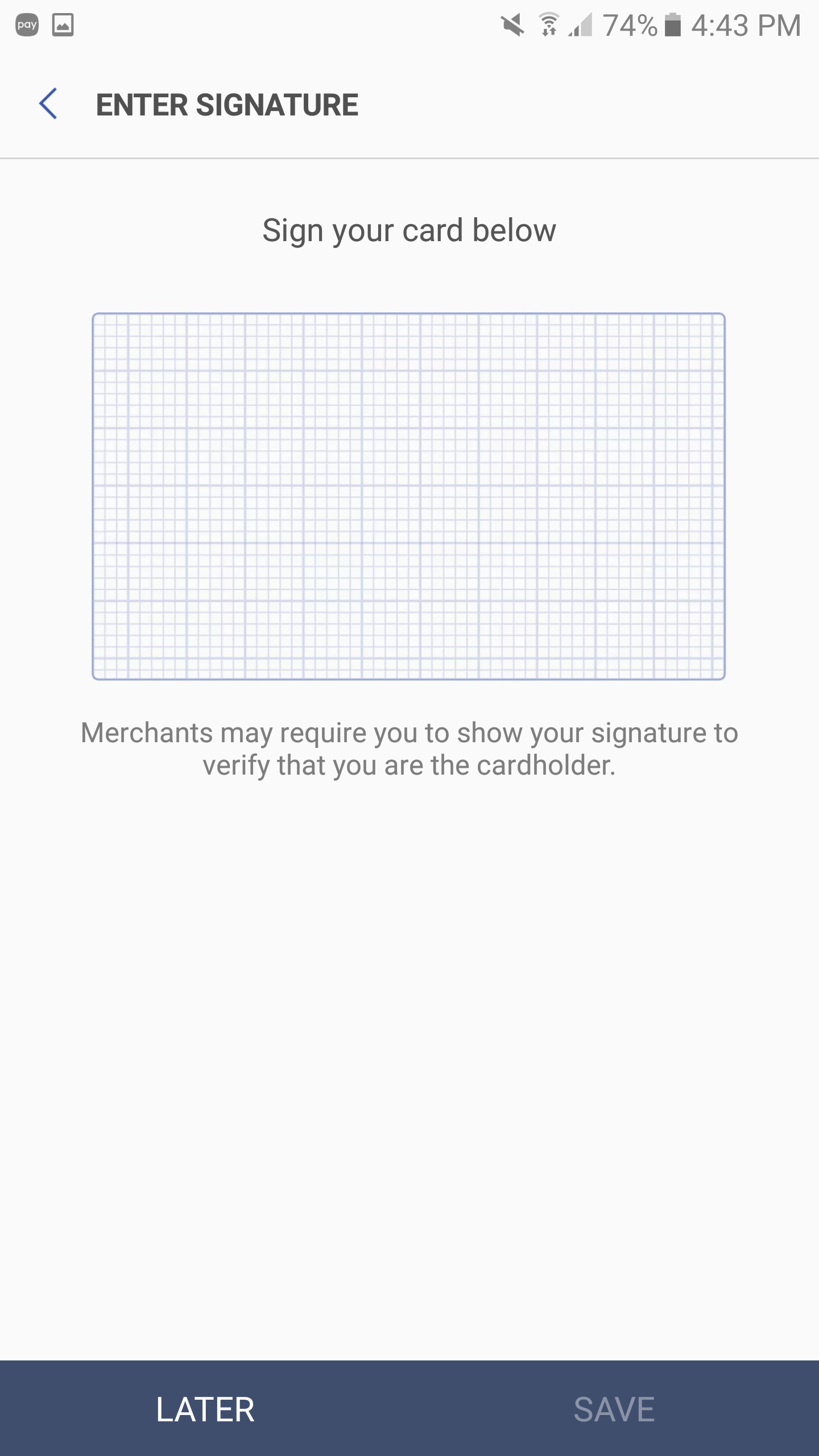
Once you have logged in, you will be asked to set a verification method for securing Samsung Pay. You can use your fingerprint for the same or set a PIN (using a fingerprint will also require a PIN as a failsafe). Once you have set up your chosen verification method, you will be given the option to add a new card.
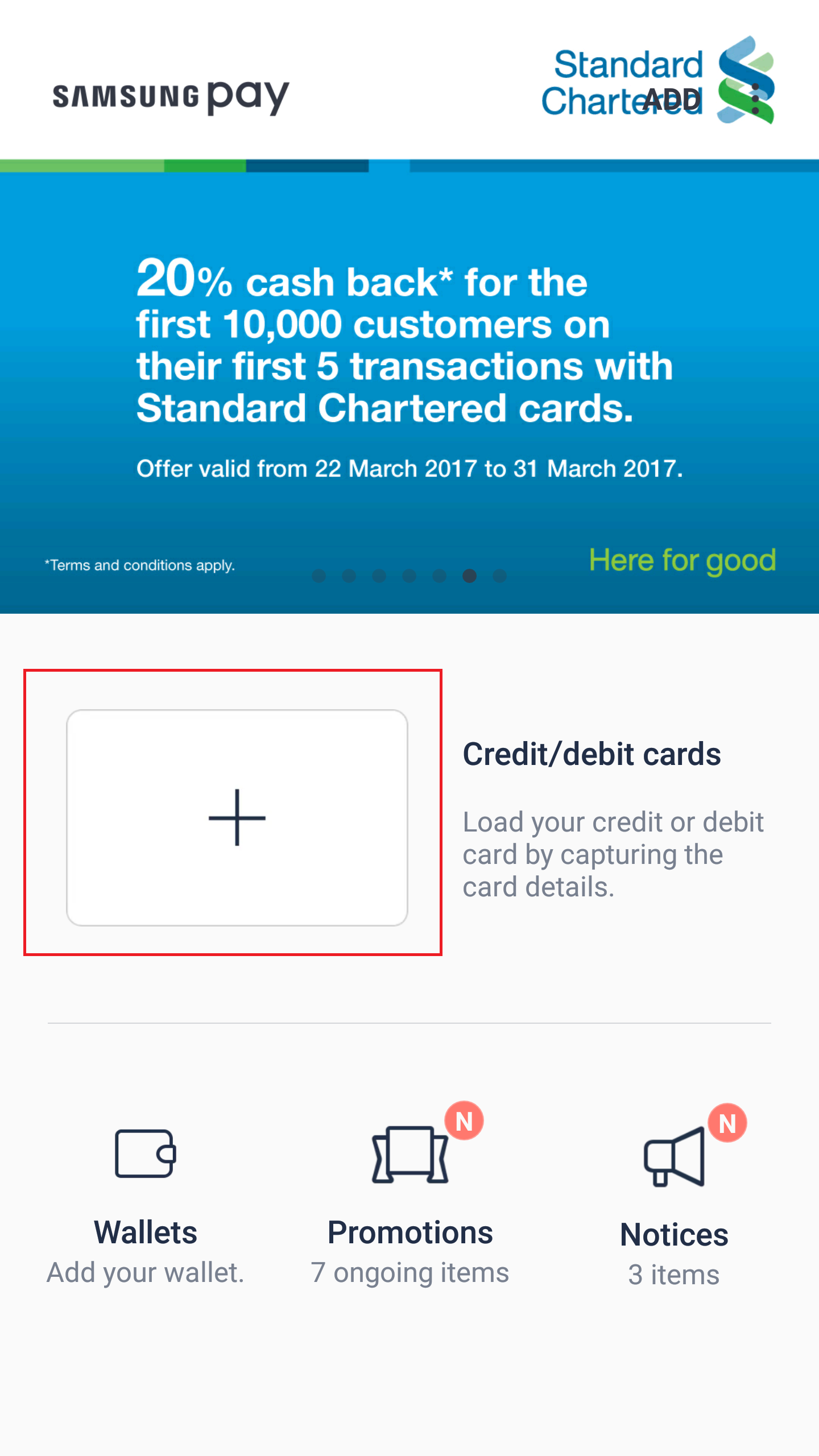

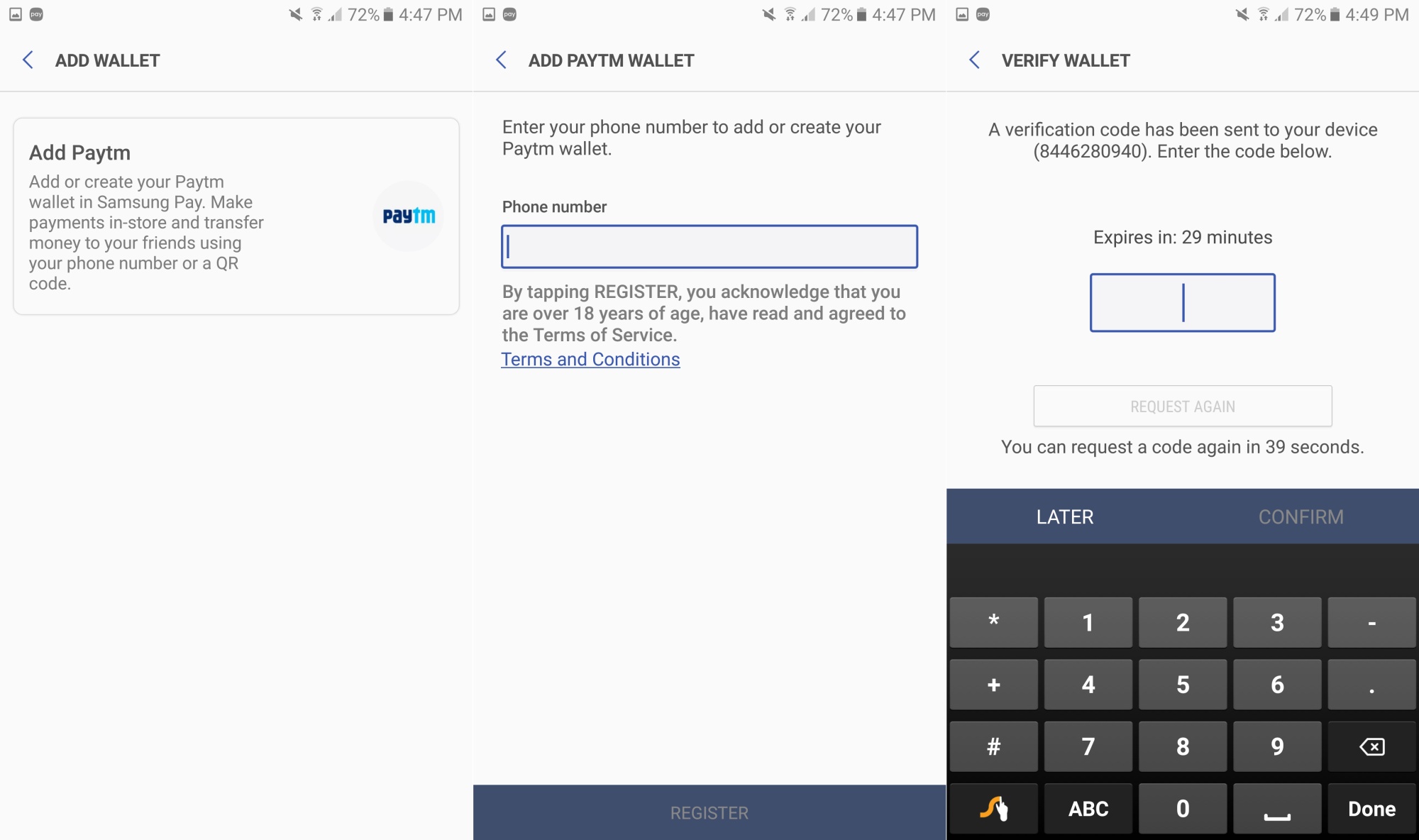
Samsung Pay also allows Indian users to add a Paytm wallet account, so that you can pay from your Paytm wallet balance through Samsung Pay instead of firing up the Paytm app. To add a Paytm account, hit the Wallets button in the Samsung Pay app, then hit the Add Paytm button. Enter the phone number registered to your Paytm account, hit Register, then wait for an OTP to be sent to your number. Enter the received OTP in the verification field, then hit Confirm.
You will be returned to the main Samsung Pay screen, and you should see your newly added credit or debit card here, and your Paytm account in the Wallets section. So, now that you have added your card or Paytm account, how do you pay?
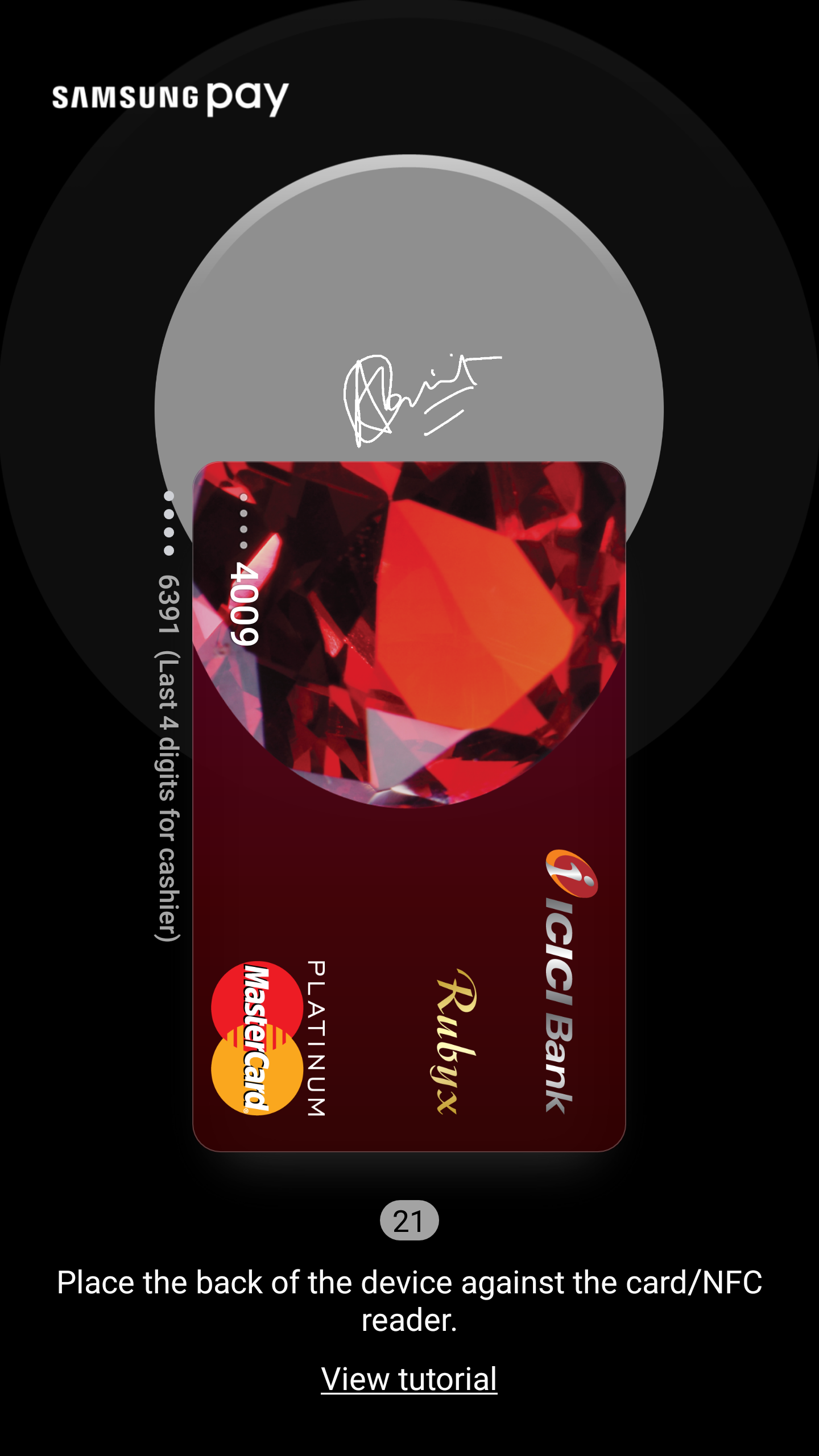
To be easily and quick accessible, the Samsung Pay app will always be running on your phone. The app can be launched by swiping up from the bottom of the screen when you're on the lock screen, home screen, and even when the phone's display is off. Once you've swiped up to open Samsung Pay, you can swipe between the cards to choose the one you want to use, then either place your finger on the home button or enter your PIN to fire up the actual payment screen.
Then, simply place your phone against the top or the side of the payment terminal/card reader to begin payment. Keep in mind that the card reader might sometimes fail to properly receive information from the phone; in such cases it's best to try again or simply pay with your card, lest you hold up the people in the queue behind you.
If you intend to use your Paytm wallet, you can scan the QR code put up at the retailer's or show your own code to the cashier so they can scan it (if they have the necessary equipment) to make payment. You also have the option of sending money to others, by simply entering their phone number.
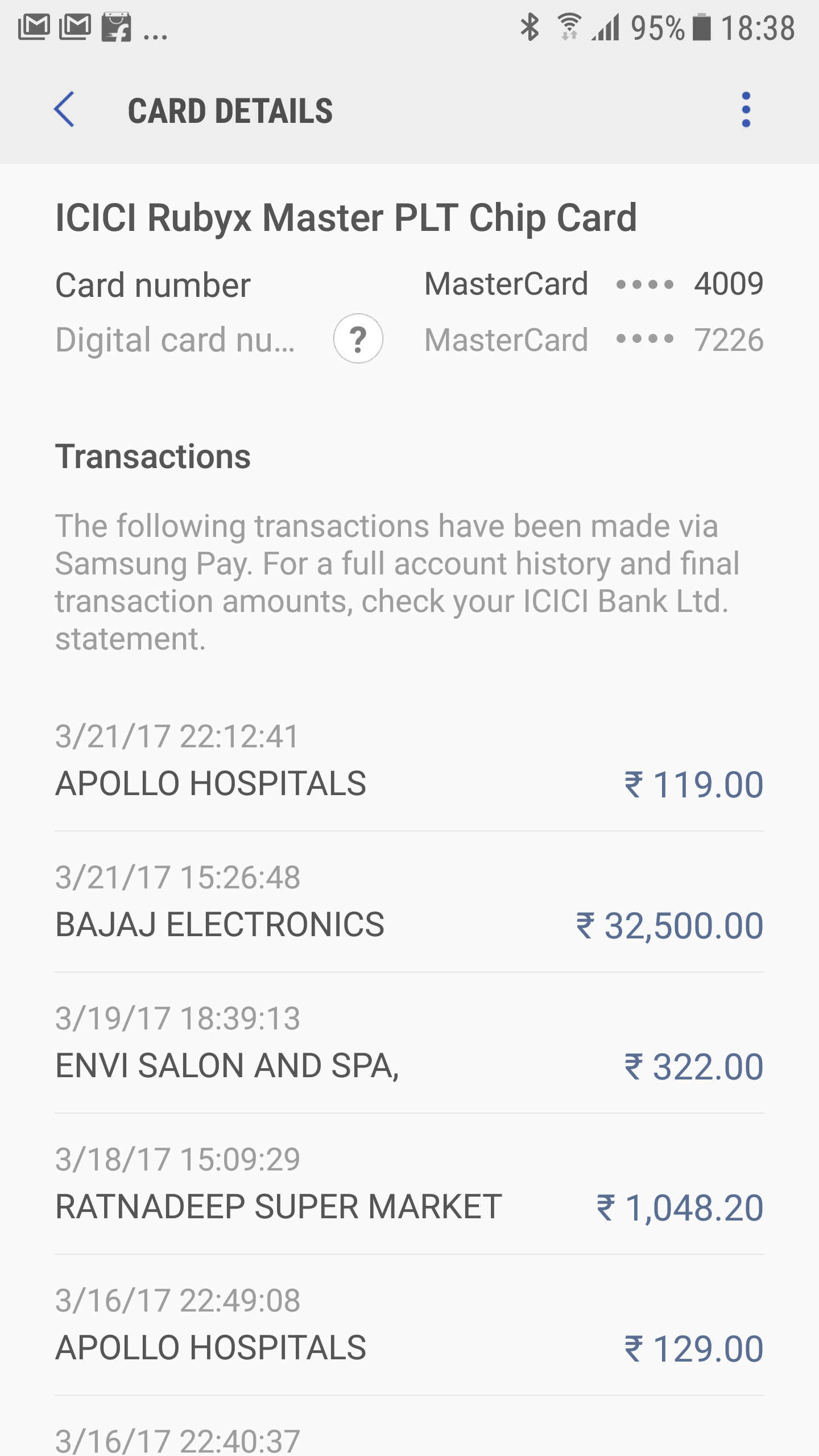
Whenever you use Samsung Pay to make a payment, the transaction will be added to the list of transactions for the particular card used. To see these transactions, fire up the Samsung Pay app (if you open it by swiping up from the bottom of the screen, simply swipe down again to access the main app). Then, click on the Credit/Debit cards text in the middle of the screen, then select the card you want to view details for. All transactions made via Samsung Pay will be listed here. Remember that you will need an internet connection for the transaction list to be updated, but you do not need an internet connection to use Samsung Pay for payment.
This guide will have hopefully made the process of adding cards to and using Samsung Pay simple. Should you have any doubts, don't forget to leave a comment so that we can help you get back on the right track.

Abhijeet's writing career started with guides for custom firmware for Samsung devices (including the original Galaxy S), and he moved to SamMobile in mid-2013 and worked up the ranks to Editor-in-chief. In addition to phones and mobile devices, his interests include gaming on both PC and console, PC hardware, and spending countless hours on YouTube watching videos on tech, movies, games, politics, and internet dramas.












