Cyber week deals! Galaxy Watch8 Classic, Fold 7, S25 Ultra. Follow us on YouTube, TikTok, or LinkedIn
Last updated: April 25th, 2016 at 16:41 UTC+02:00
SamMobile has affiliate and sponsored partnerships, we may earn a commission.
Reading time: 2 minutes
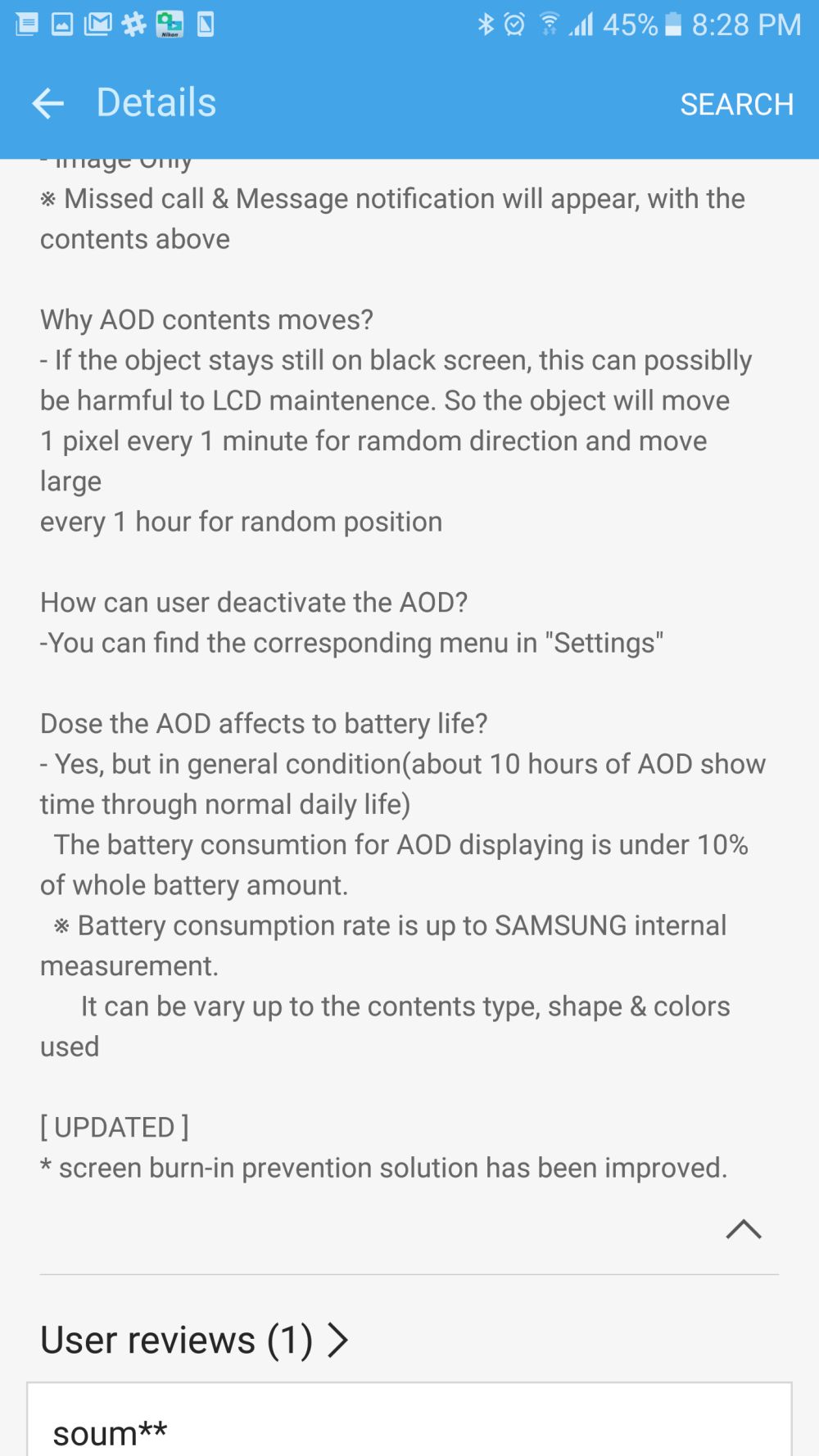
We're not sure how it has been improved, however, as the content doesn't jump around the screen anymore. That seems like a surefire recipe for inducing more burn-in on the display, and we will have to wait and see what exactly Samsung has done here. It's also disappointing that the company hasn't brought any new functionality to a feature that it took considerable time to implement on its devices when compared to the competition. But then again, Samsung certainly has started listening to its consumers, and we can hope Always On Display will one day be a more useful feature.
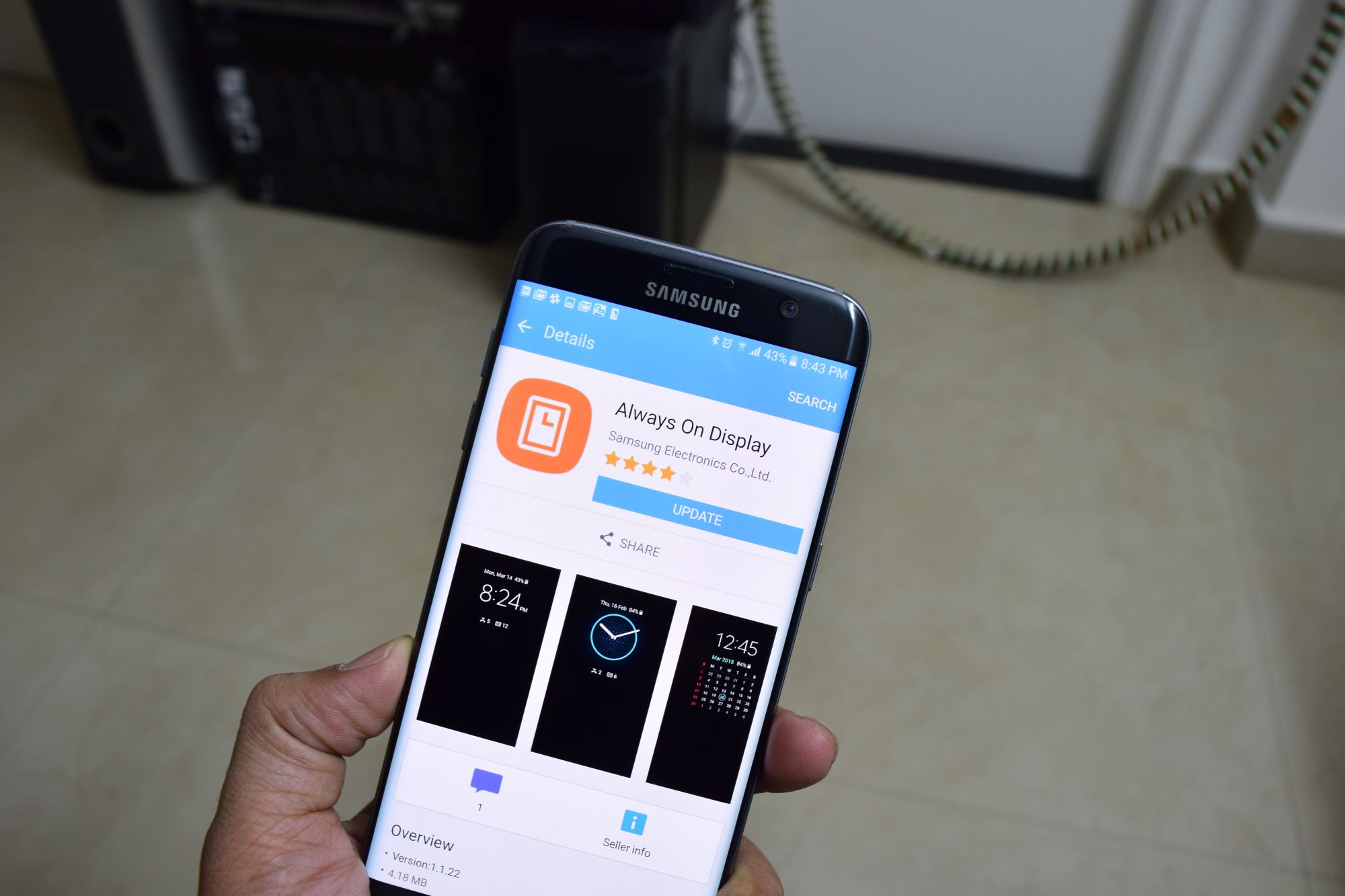
To get the update, head into the Settings » Display » Always On Display menu, hit About Always On Display, then tap the Update button. This will take you to the Galaxy App store, where you will need to hit the Update button once again to actually grab the latest version of Always On Display. In case you notice anything once the update is installed, well, do let us know through the comments section.
Abhijeet's writing career started with guides for custom firmware for Samsung devices (including the original Galaxy S), and he moved to SamMobile in mid-2013 and worked up the ranks to Editor-in-chief. In addition to phones and mobile devices, his interests include gaming on both PC and console, PC hardware, and spending countless hours on YouTube watching videos on tech, movies, games, politics, and internet dramas.