Cyber week deals! Galaxy Watch8 Classic, Fold 7, S25 Ultra. Follow us on YouTube, TikTok, or LinkedIn
Last updated: March 16th, 2016 at 08:35 UTC+01:00
SamMobile has affiliate and sponsored partnerships, we may earn a commission.
Reading time: 3 minutes
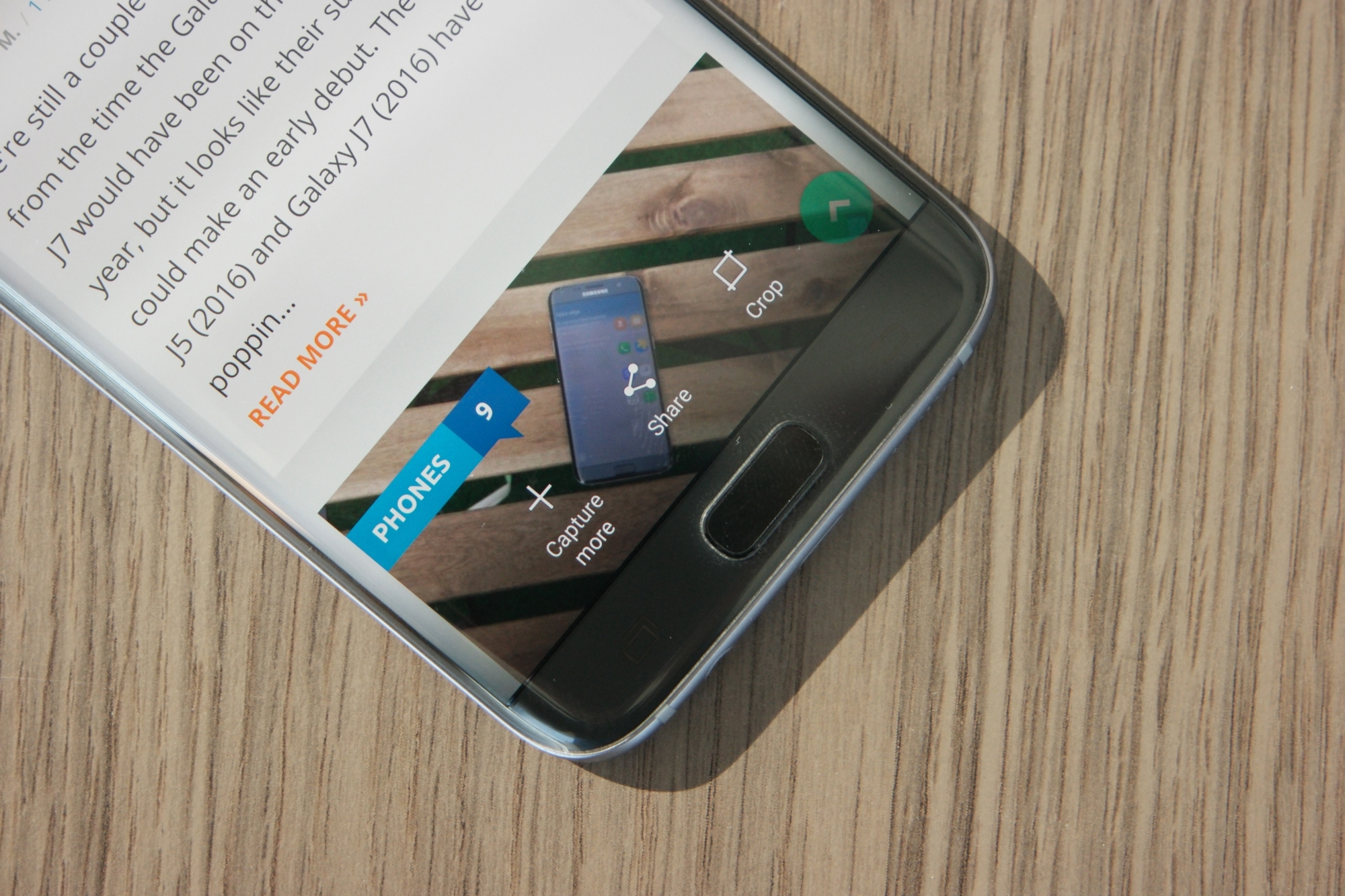
There are two methods for taking regular screenshots, and there's also an option to take a scrolling screenshot, which lets you capture multiple pages of content in a single long image.
If the content on your phone's display can be scrolled to show more information (for example, when you're in the settings menu, reading a long document, or browsing a website), you can take a scrolling screenshot. Here's how to do it.

Once taken, you can access your recent screenshot by dragging down the status bar and clicking on the screenshot notification. You can also delete the screenshot here, or go into editing mode by pressing the relevant button in the notification. To access all your screenshots, simply go into the Gallery app and into the Screenshots folder. If your gallery is set to show images based on time (this can be changed by clicking on the arrow at the top left of the gallery), you will see the screenshots alongside all your other photos, sorted based on the time they were taken.
Check out more Galaxy S7 and Galaxy S7 tips to make the best of your new phone.
Abhijeet's writing career started with guides for custom firmware for Samsung devices (including the original Galaxy S), and he moved to SamMobile in mid-2013 and worked up the ranks to Editor-in-chief. In addition to phones and mobile devices, his interests include gaming on both PC and console, PC hardware, and spending countless hours on YouTube watching videos on tech, movies, games, politics, and internet dramas.