Last updated: January 27th, 2016 at 15:56 UTC+01:00
SamMobile has affiliate and sponsored partnerships, we may earn a commission.
Reading time: 2 minutes
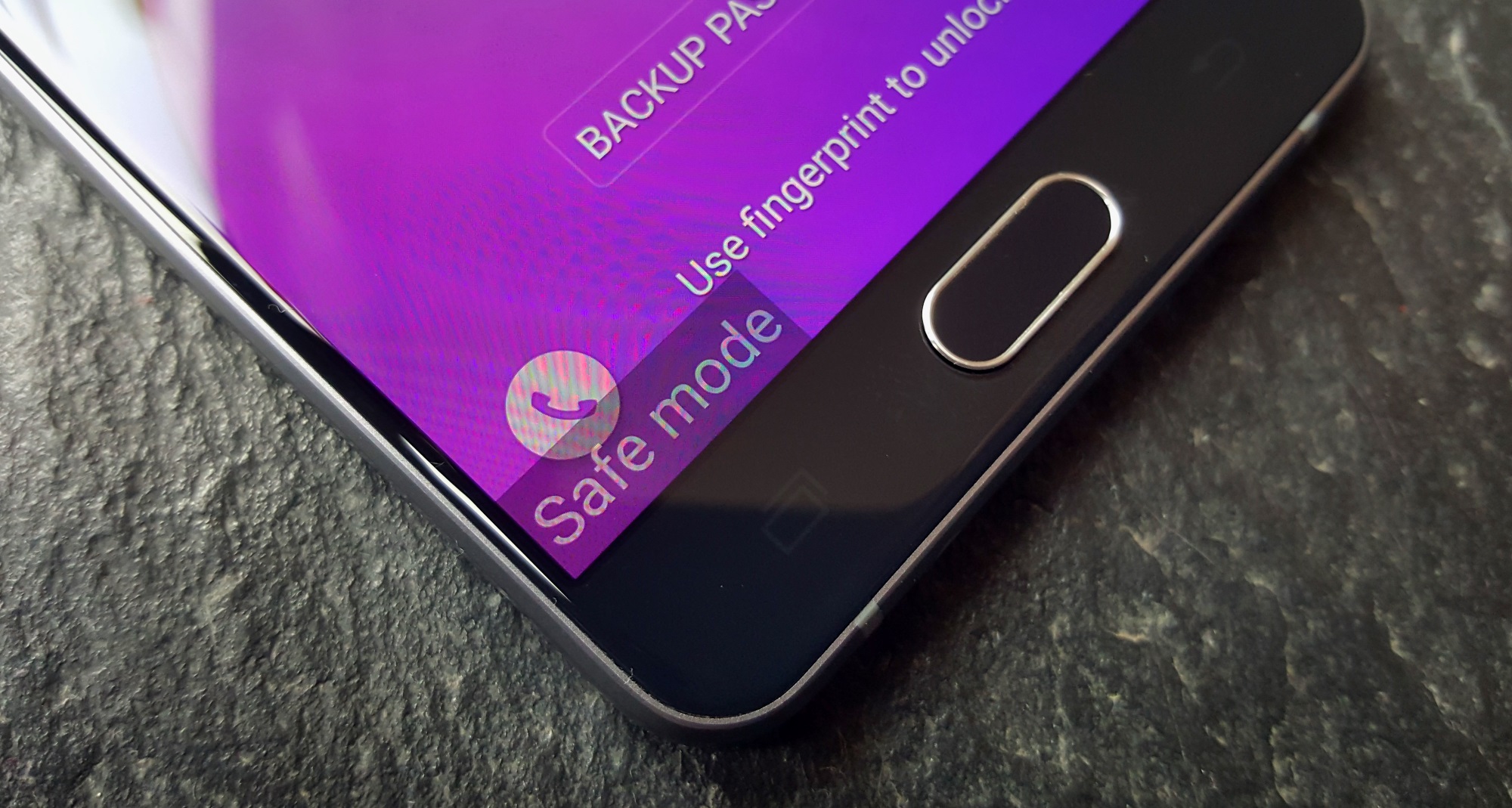
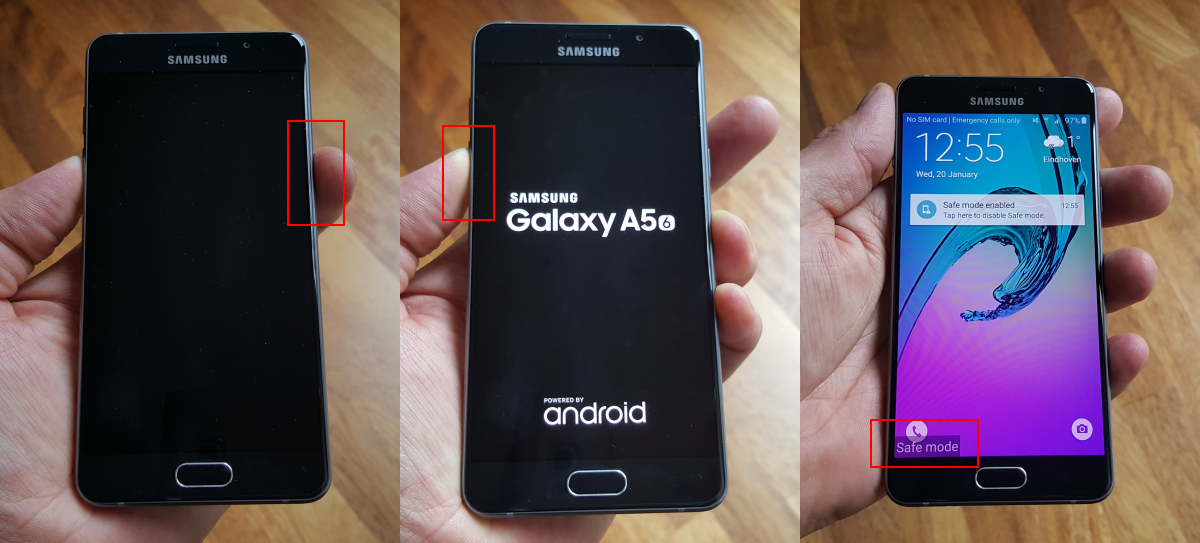
In order to determine whether a particular problem is caused by your Galaxy phone and its more fundamental software (e.g. the operating system), or by applications you yourself installed, you can run the device in safe mode. In this mode, you can test your phone as if it was a clean device without any user added apps. If your problem persists, the issue is either hardware or operating system related. If everything is fine in safe mode, the bug was likely caused by some user-installed application.
However, this article is not here to diagnose the exact problem your Galaxy device might be having. We're here to explain how to boot your phone into safe mode. The procedure is very simple, once you know how it's done:
Also, a notification will appear telling you the safe mode is, in fact, enabled. Tap this notification to get the option to restart your Galaxy device into normal mode, once you figure out where the problem might lie. We have not specified the exact Galaxy device you can boot into the safe mode using the above outlined steps. This method works on all fairly recent Galaxy devices.