Last updated: November 27th, 2015 at 17:56 UTC+01:00
SamMobile has affiliate and sponsored partnerships, we may earn a commission.
Reading time: 3 minutes
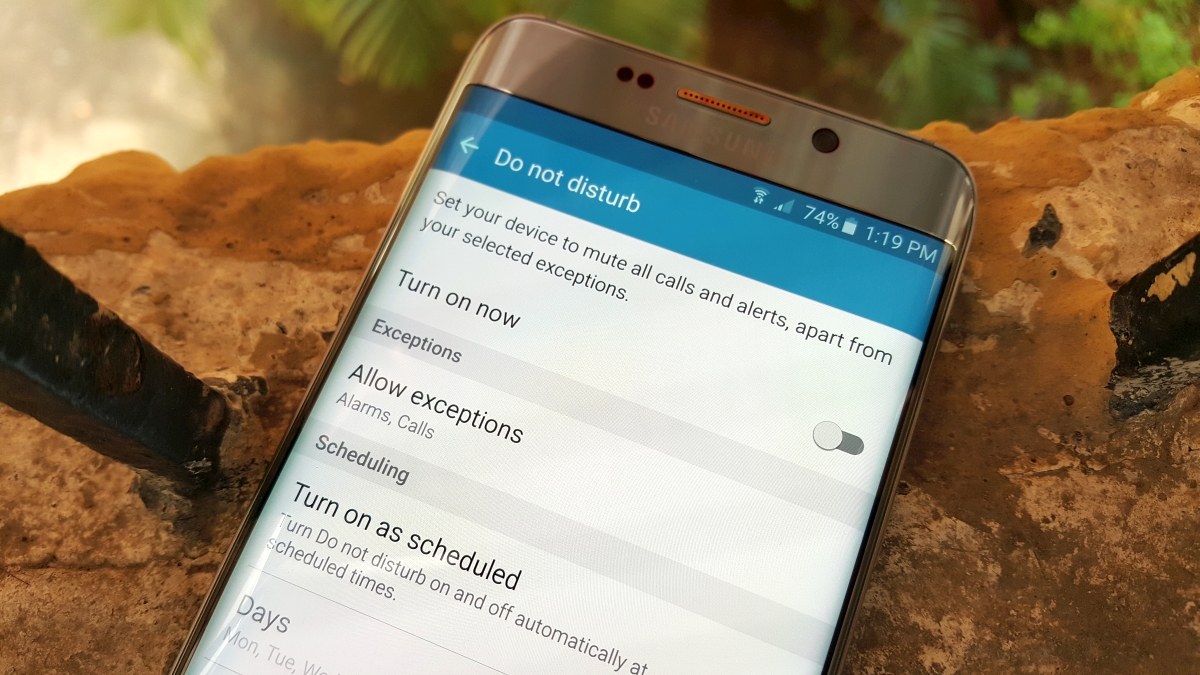
Here’s how you set it up.
You will now notice that a Do Not Disturb icon is present in your Notification Panel whenever it is active. While the service is on, your phone will be completely silent. You do, however, have the facility to set exceptions for alarms, telephones numbers and important applications.
On my device, I have my morning alarm set as an exception, together with phone numbers for immediate family — so if something were to happen during the night, they could easily reach me, but all other unimportant notifications remain muted.
To enable exceptions, navigate back to the Do Not Disturb menu in Settings. Scroll down until you see an option titled “Allow Exceptions” and select it. Here, you will find the resources to input all of the alarms, numbers and applications you would like to bypass the silence.
If you are using any of the other Samsung devices launched this year running Android 5.0, you should be use the Do Not Disturb feature the same way as it has been described above. Moreover, you can access the Do Not Disturb menu quickly by adding it to the notification panel's quick toggles area.
If you happen to run into any issues along the way, do be sure to let us know in the comments section below, and we’ll do our very best to get you back on track.














