Last updated: February 6th, 2024 at 13:35 UTC+01:00
SamMobile has affiliate and sponsored partnerships, we may earn a commission.
Reading time: 2 minutes
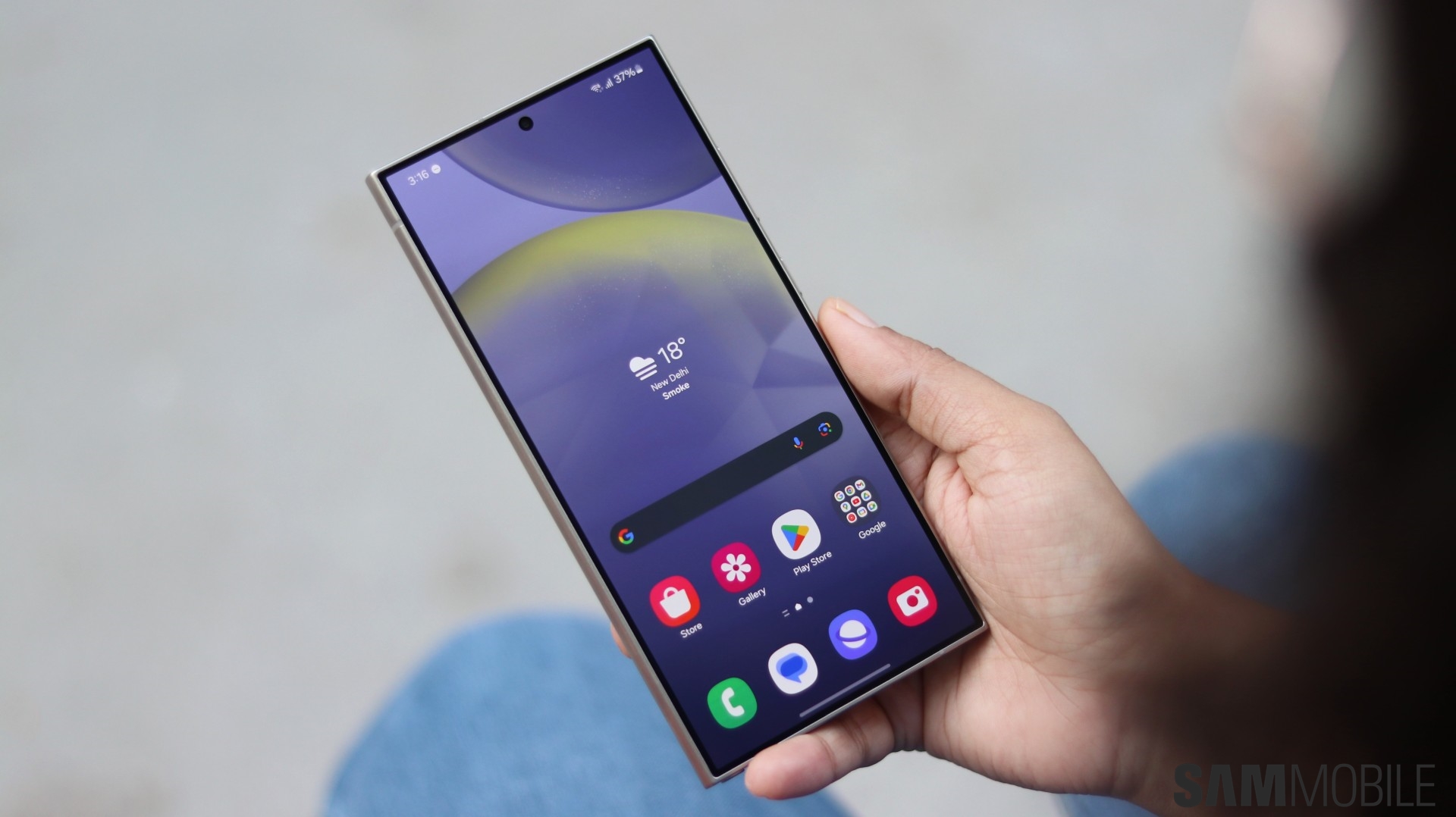
When Tap View and Tap Sound are enabled, all you need to do to share the video or audio from your Galaxy device is to tap the back of your phone to the side of your TV or soundbar. A wireless connection between your devices will then be established. Here's how you can set up this clever feature.
To start using Tap View or Tap Sound, first, you obviously have to make sure that your Samsung TV or soundbar supports this feature.
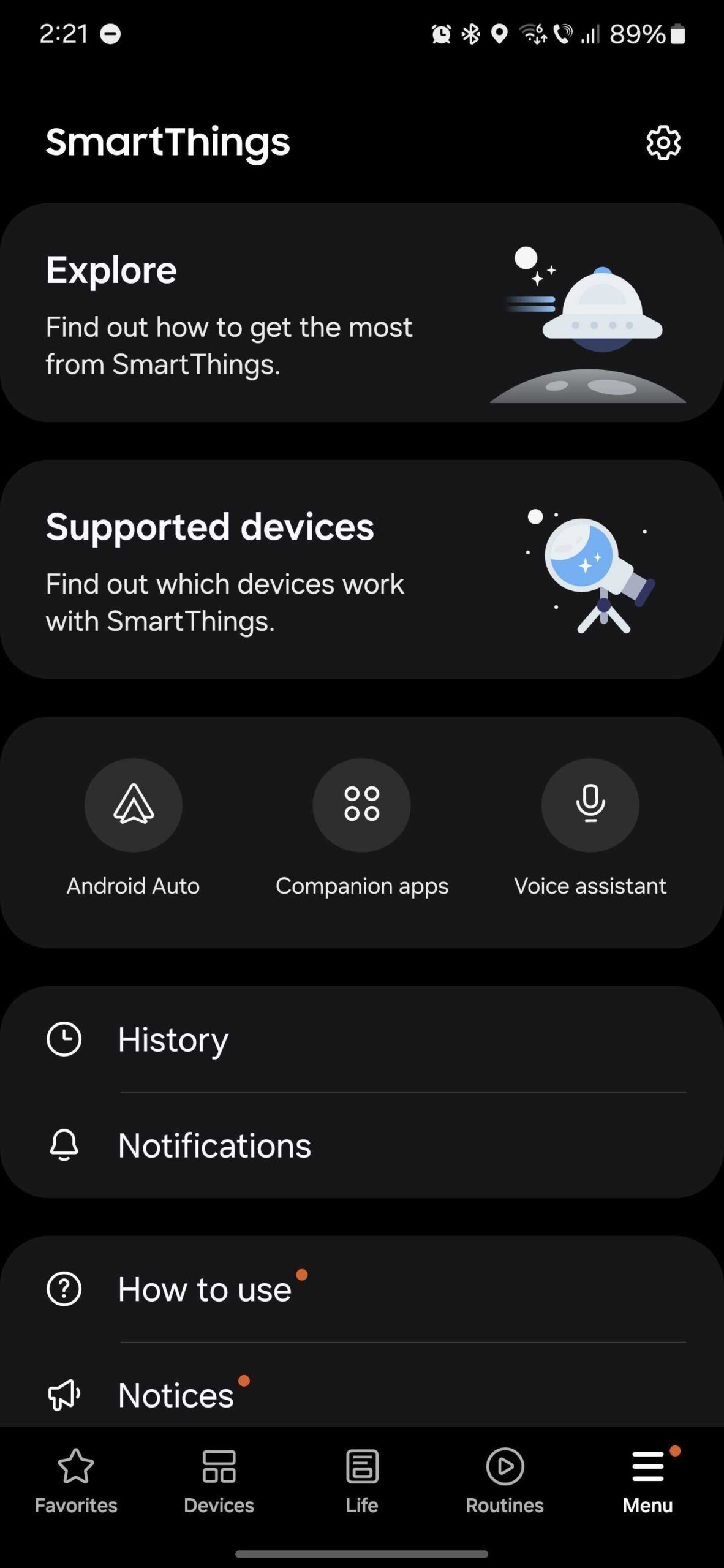
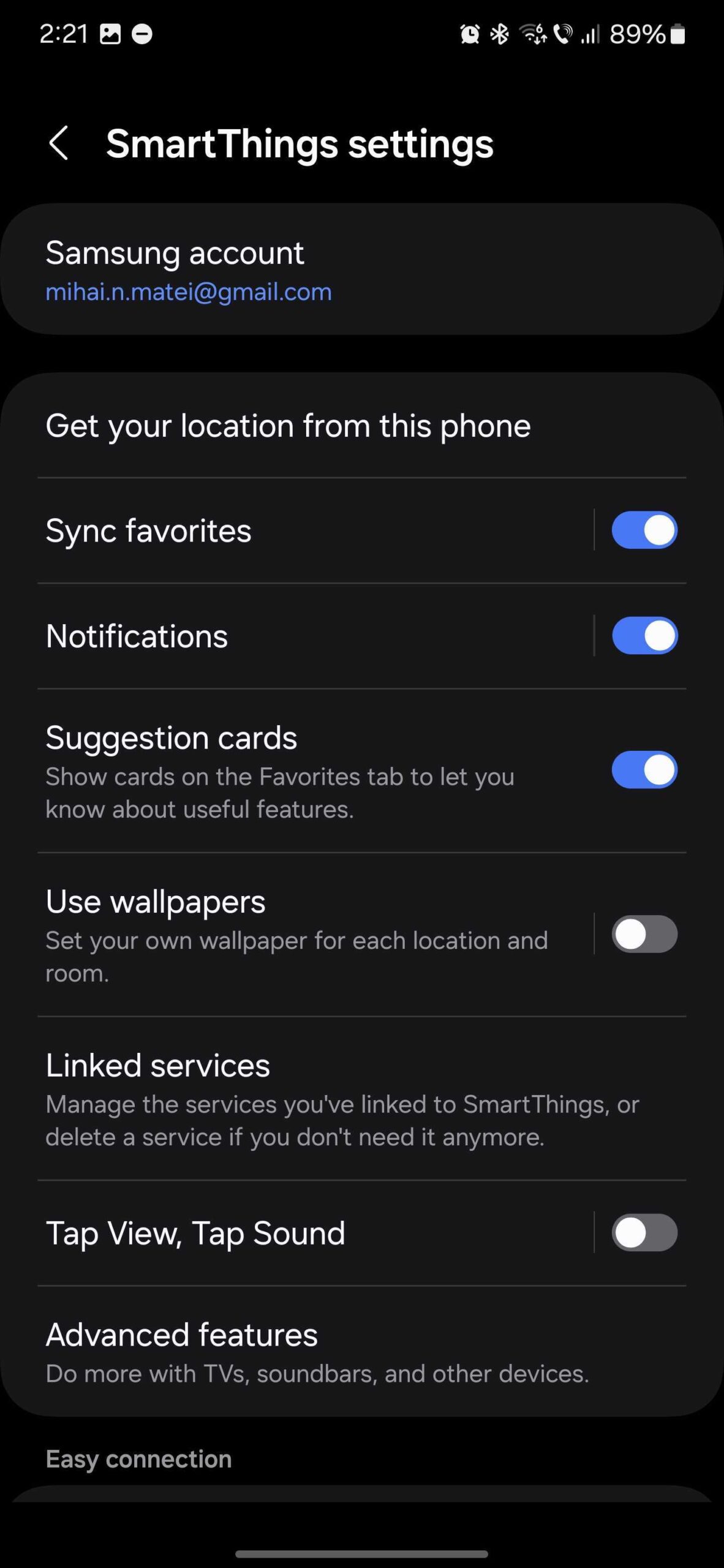
Next, you need to set up your phone. Open the SmartThings app, access the “Menu” tab, tap the “Settings” icon at the top, select “Tap View, Tap Sound,” and tap the switch toggle ON.
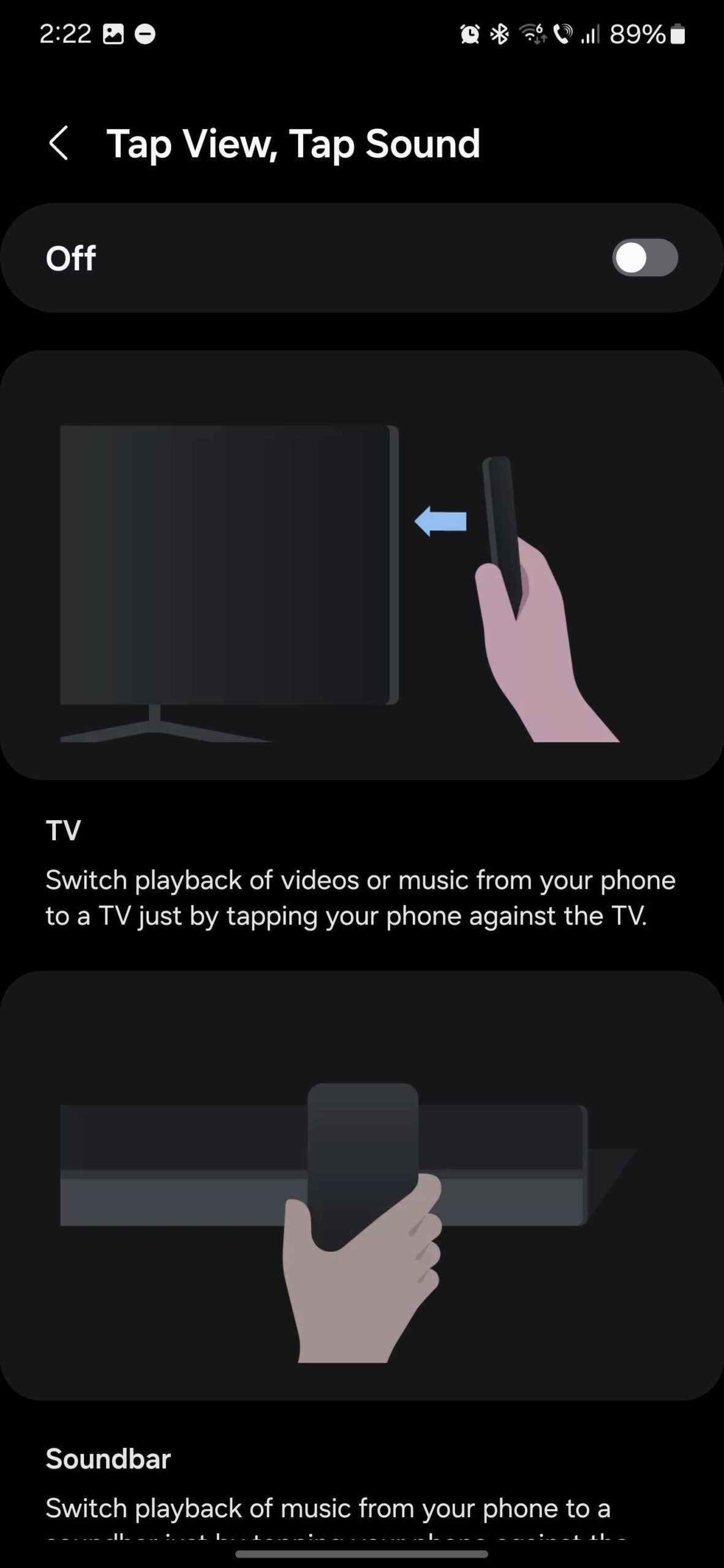
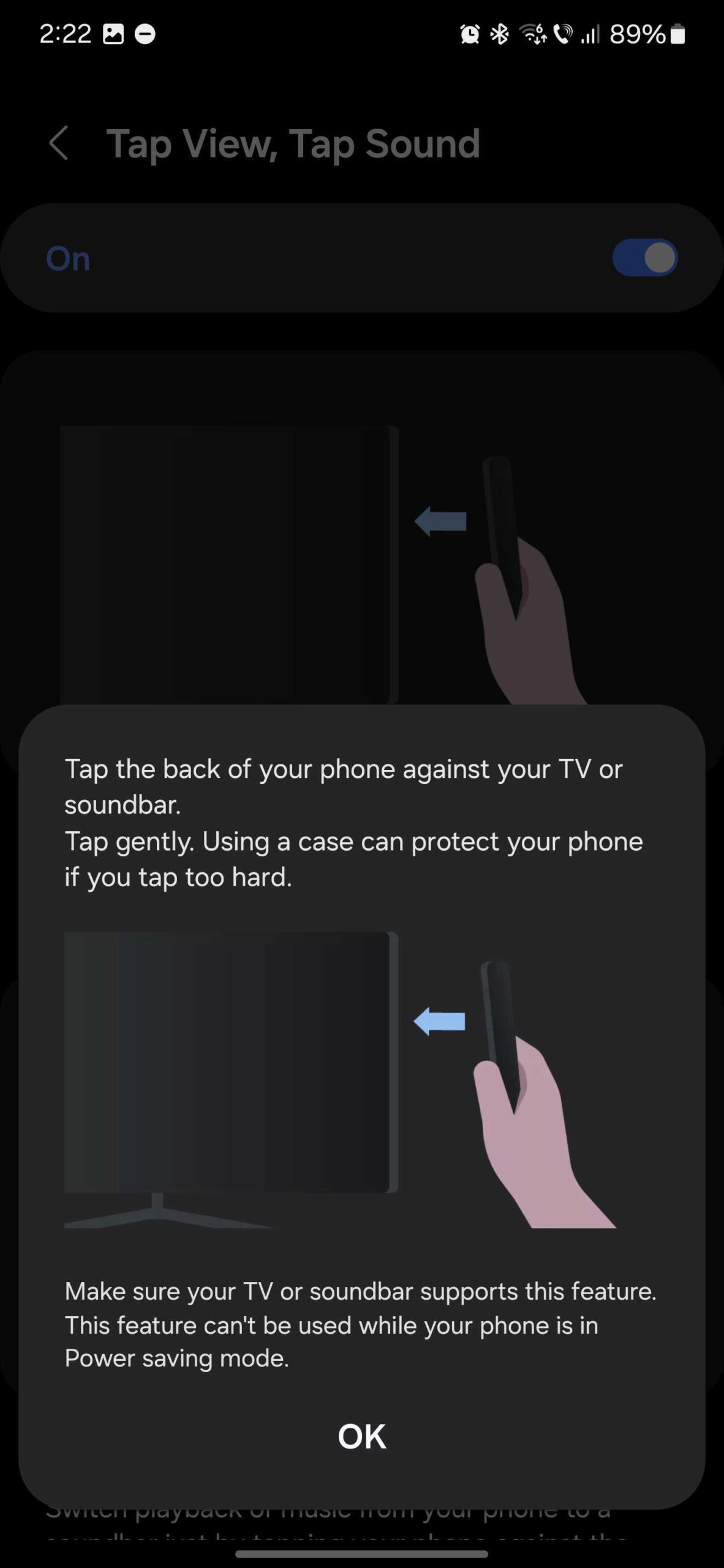
Once this option is turned on, you can gently tap the back of your Galaxy phone to your Samsung TV or soundbar to start casting your phone's screen or audio. As you may have read in the pop-up on your mobile device, this feature doesn't work when your phone is in Power Saving mode.

Mihai is a blogger and column writer at SamMobile. His first Samsung phone was an A800 which took a lot of beating, and a part of him still misses the novelty of the clamshell design. In his free time, he enjoys watching shows, documentaries, and stand-up comedy; listening to music, taking walks, and occasionally playing old(er) video games.














