Last updated: January 11th, 2024 at 14:38 UTC+01:00
SamMobile has affiliate and sponsored partnerships, we may earn a commission.
Reading time: 2 minutes
These features offer a fair degree of customization, from screen flash colors to per-app settings. Here's all you need to know.
Flash notifications are One UI Accessibility features designed to alert the Galaxy phone user of incoming calls, messages, and general app notifications.
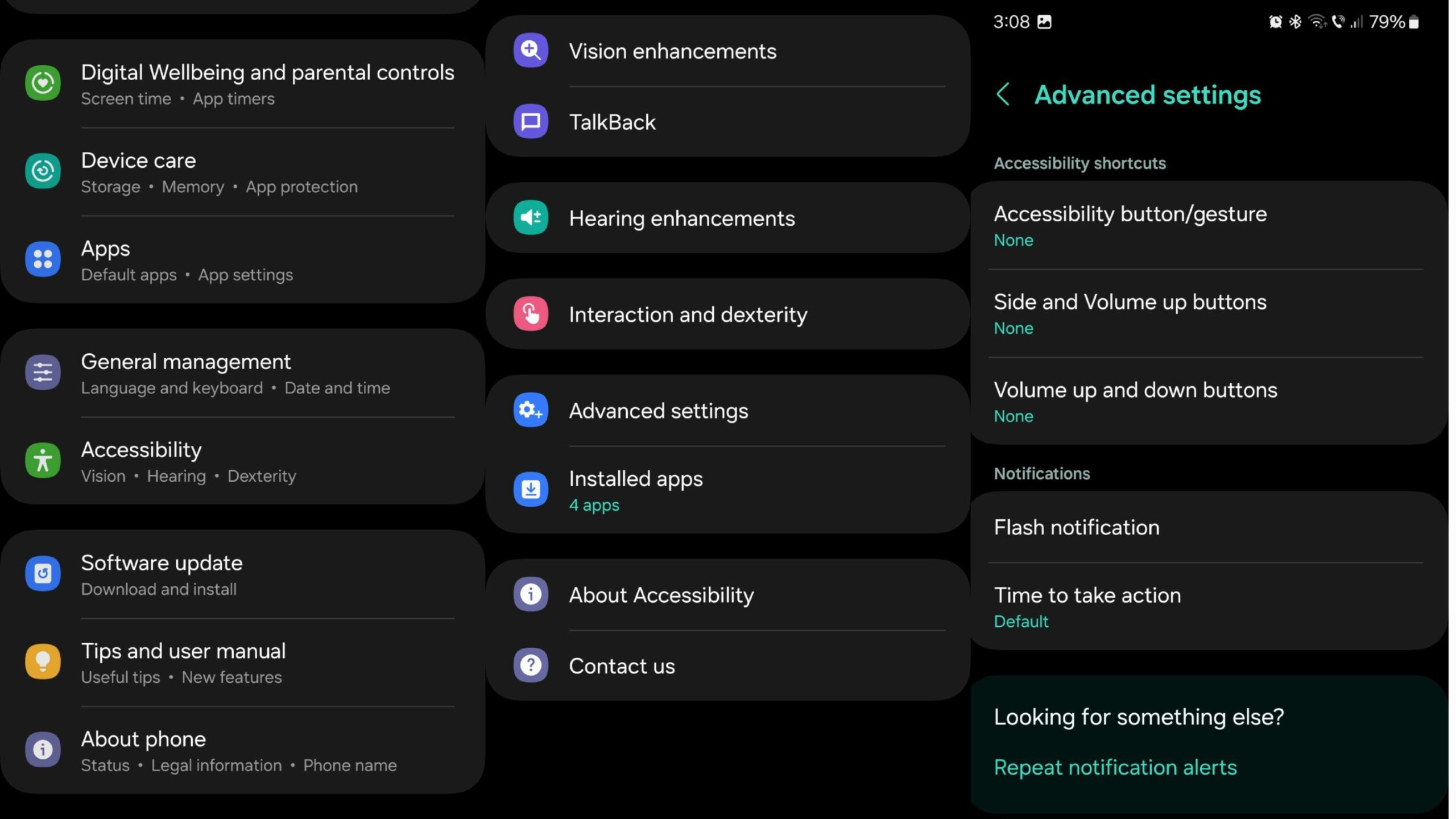
To turn them ON, open the Settings app on your Galaxy phone, go to “Accessibility,” select “Advanced settings,” and tap “Flash notification.”
From this menu, you can turn ON or OFF “Camera flash notification” and “Screen flash notification” independently or altogether by tapping the toggle switches. However, tapping each of these features — instead of their associated toggle switches — reveals more options.
The Camera and Screen flash notification features can be turned ON or OFF for apps individually or for “All apps.” In addition, users can set a custom color for screen flash notifications by tapping the circular color switch.

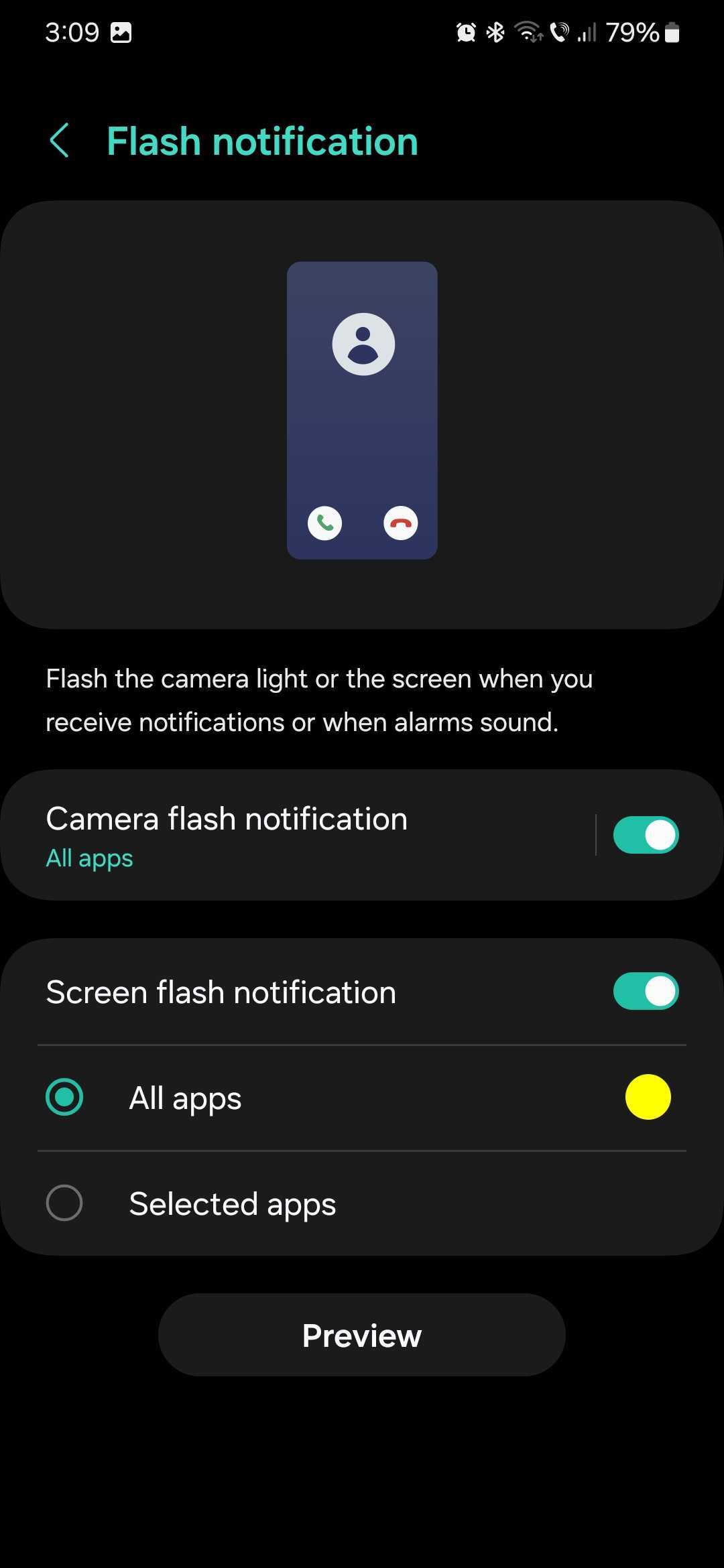
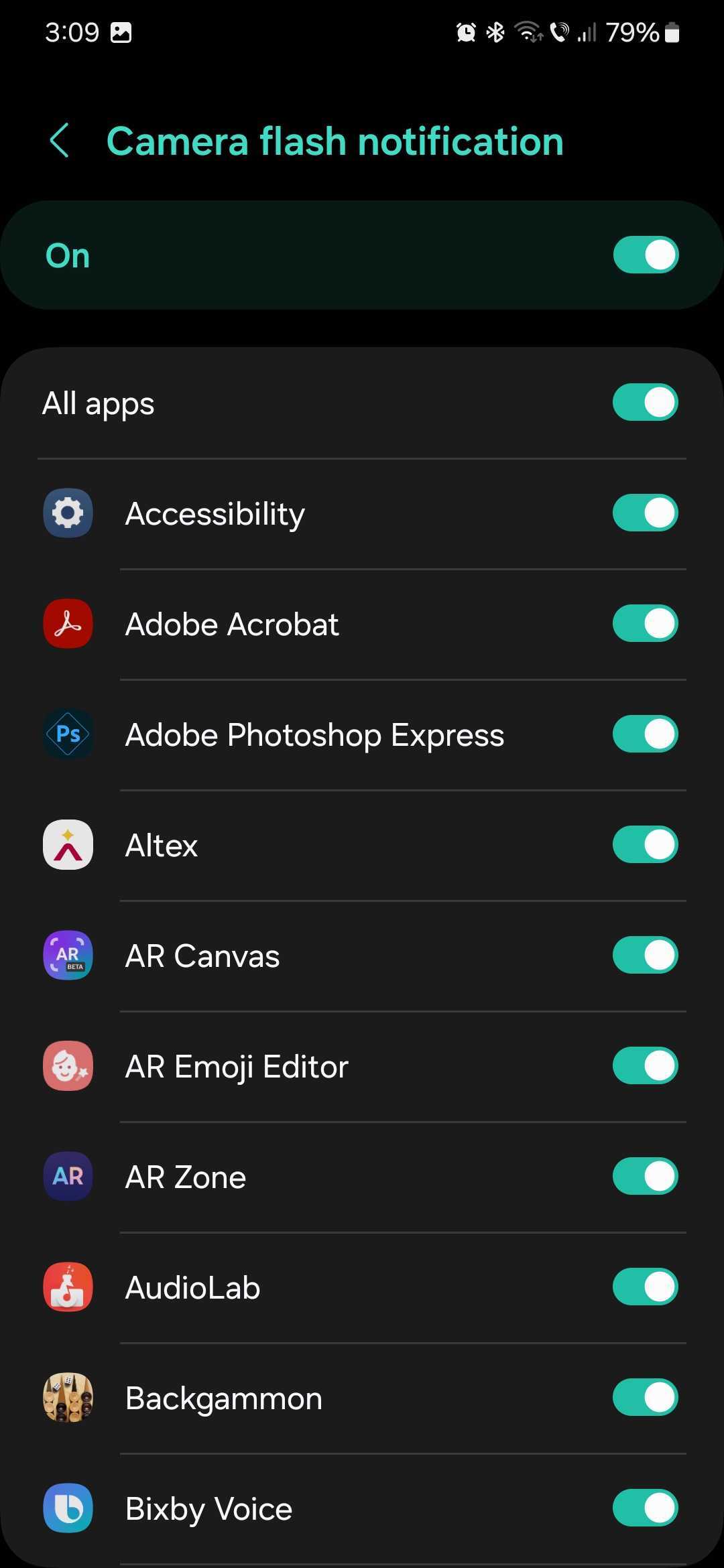
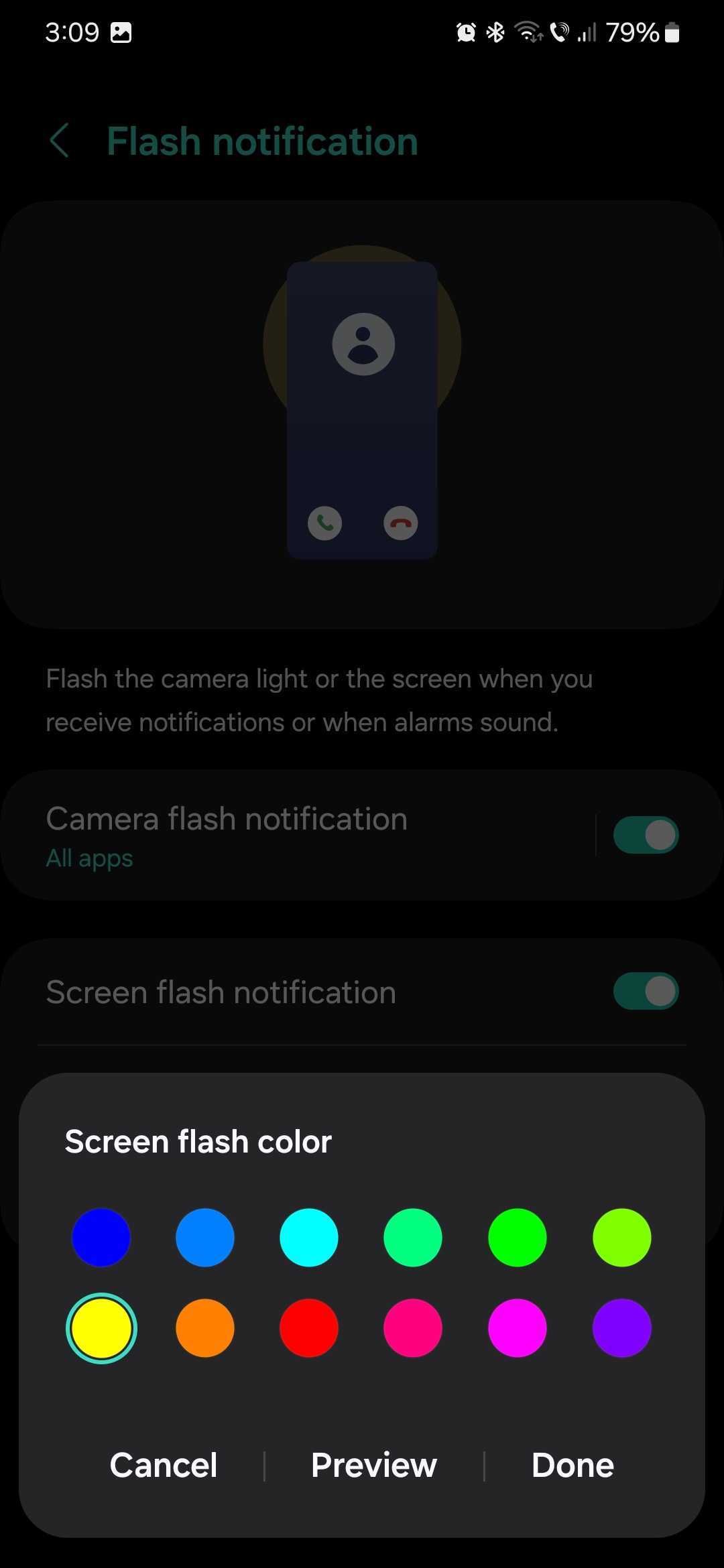
Conveniently, once you've customized flash notification settings to your liking, you don't have to wait for a call or a message to reach your phone to see if you got the right setup. You can tap the “Preview” button for a demonstration of what these extra notification visual cues look like on your device.

Mihai is a blogger and column writer at SamMobile. His first Samsung phone was an A800 which took a lot of beating, and a part of him still misses the novelty of the clamshell design. In his free time, he enjoys watching shows, documentaries, and stand-up comedy; listening to music, taking walks, and occasionally playing old(er) video games.














