Cyber week deals! Galaxy Watch8 Classic, Fold 7, S25 Ultra. Follow us on YouTube, TikTok, or LinkedIn
Last updated: May 1st, 2015 at 11:28 UTC+02:00
SamMobile has affiliate and sponsored partnerships, we may earn a commission.
Reading time: 2 minutes
One of the first things you’ll want to do after pulling your device out of the box and logging in with your Gmail account is connect to Google services (one of them being Google Drive). To achieve Google Drive file integration and bring your Google Drive files to your new Samsung device, you need only perform the following steps.
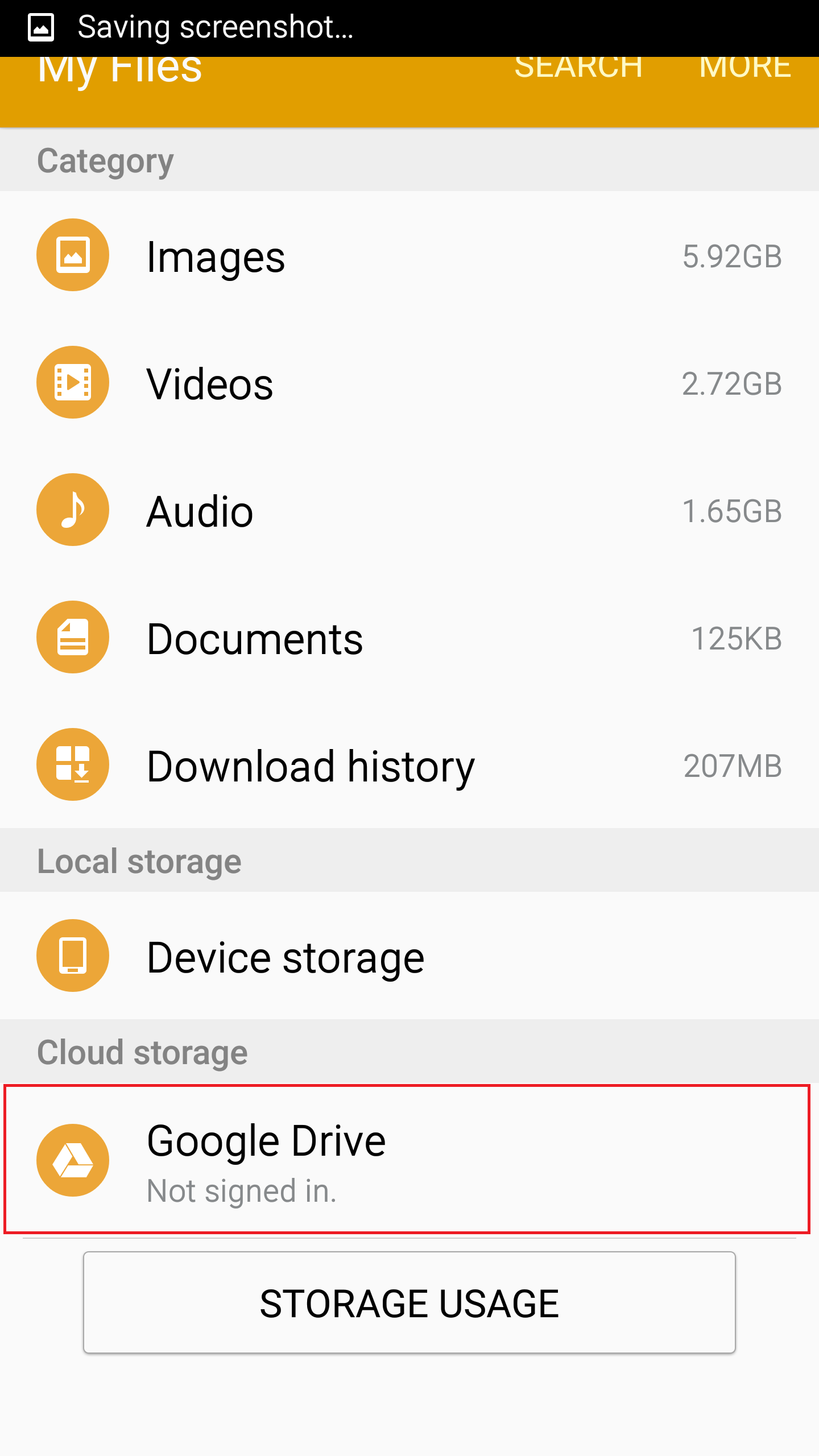
First, select cloud storage from the “My Files” menu. Next, you’ll need to connect to Google Drive over either Wi-Fi or 3G/4G/LTE. As you’ve seen it a number of times, Google Drive will present the following message if you use your internet data to connect: “Connecting to a mobile network may result in additional charges depending on your payment plan.” Select “ok” if you understand and still want to proceed. It may be best to go with Wi-Fi if your Wi-Fi access is excellent to save your 4G LTE data for another task.
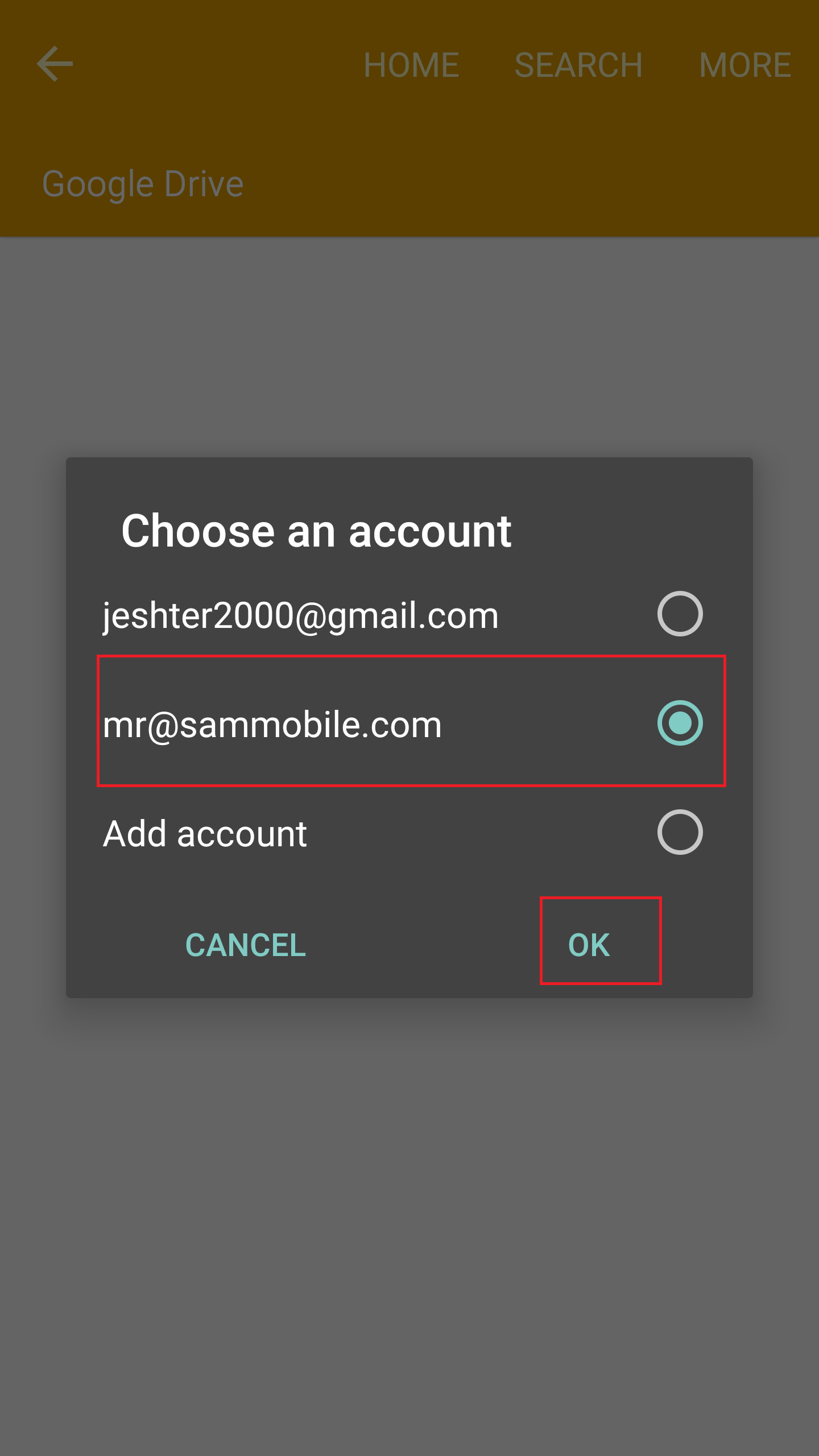
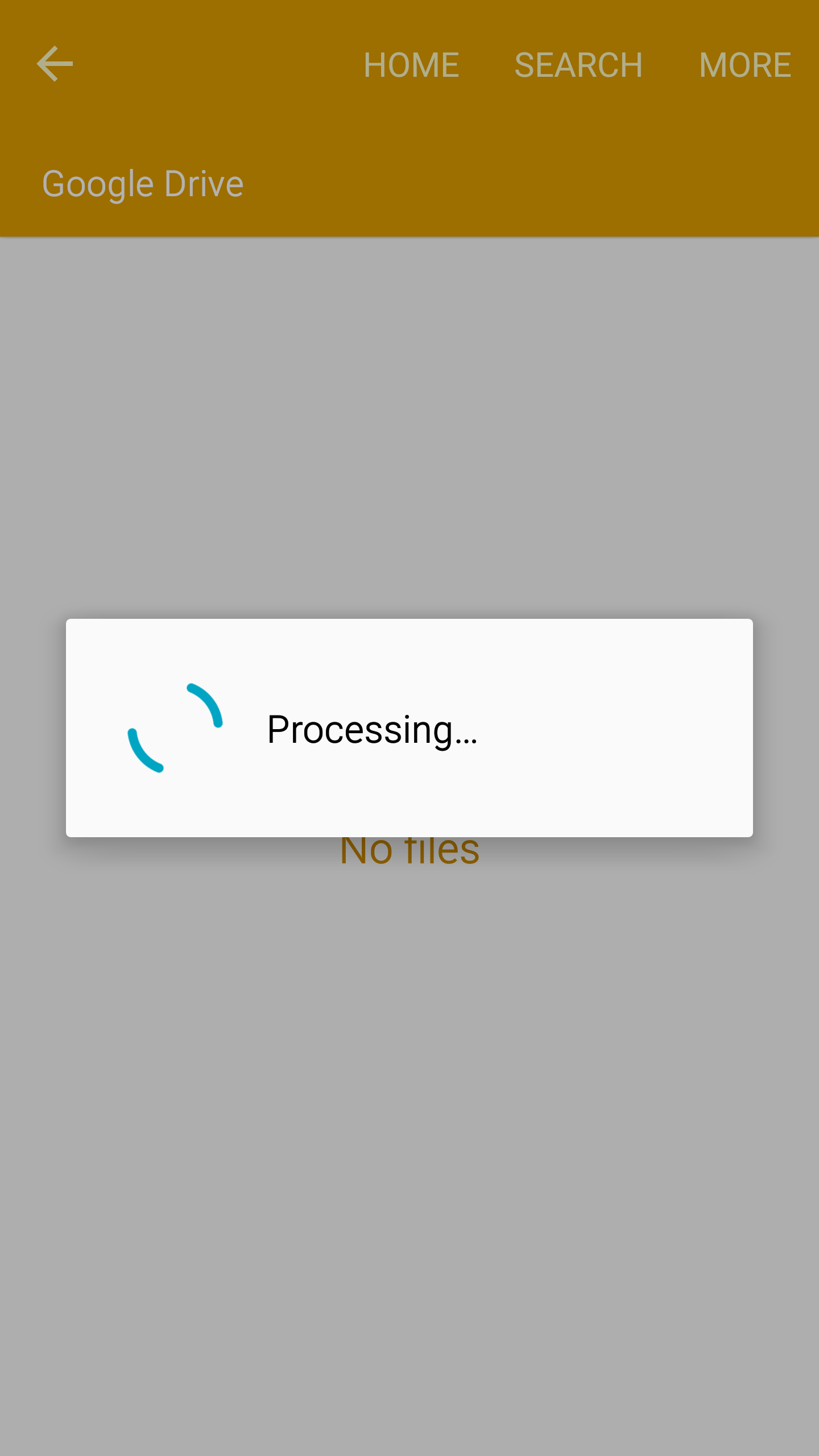
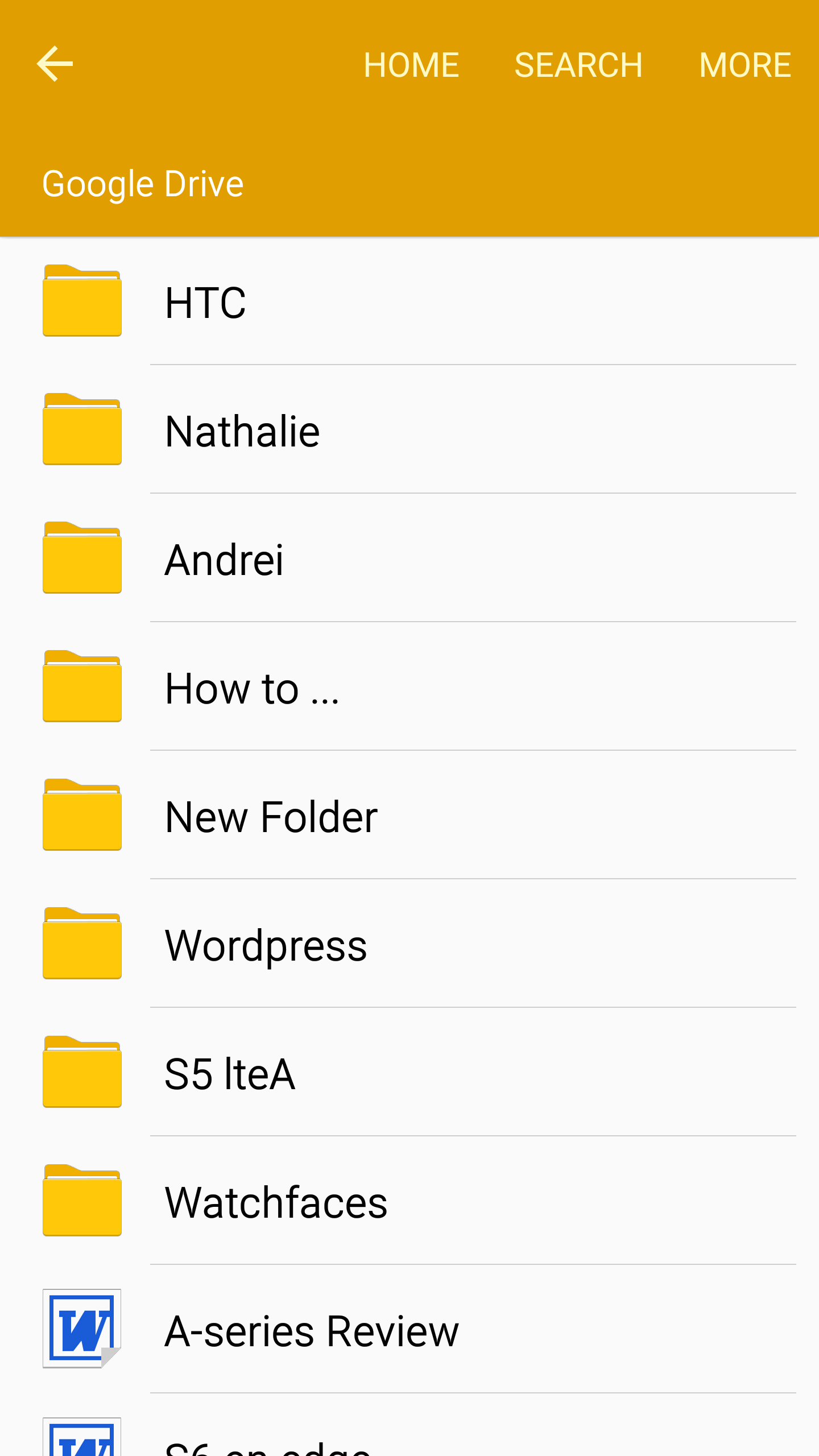
You will then get to choose the account whose files you’d like to access on your S6 or S6 edge. Select the account, then click “ok.” After processing, Google Drive file integration is complete; you'll find your Microsoft Word documents and others.
Are there any questions about Google Drive that have your curiosity peaked? Any problems with your Google Drive My Files integration? If so, feel free to write us in the comments below.